MPS Quick Start - Video
Activating Your Account
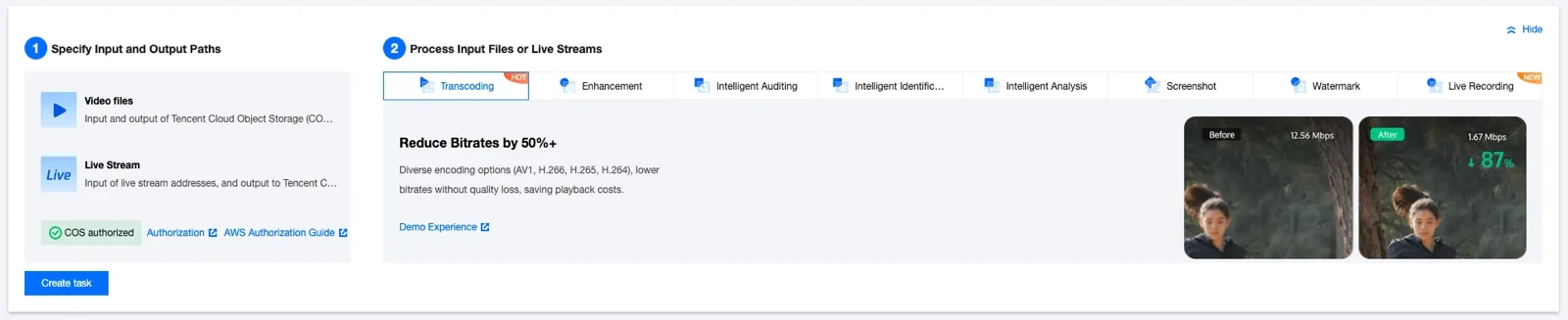
Click Hide in the upper right corner to hide the popup, then click Getting Started to begin.
Overview Screen
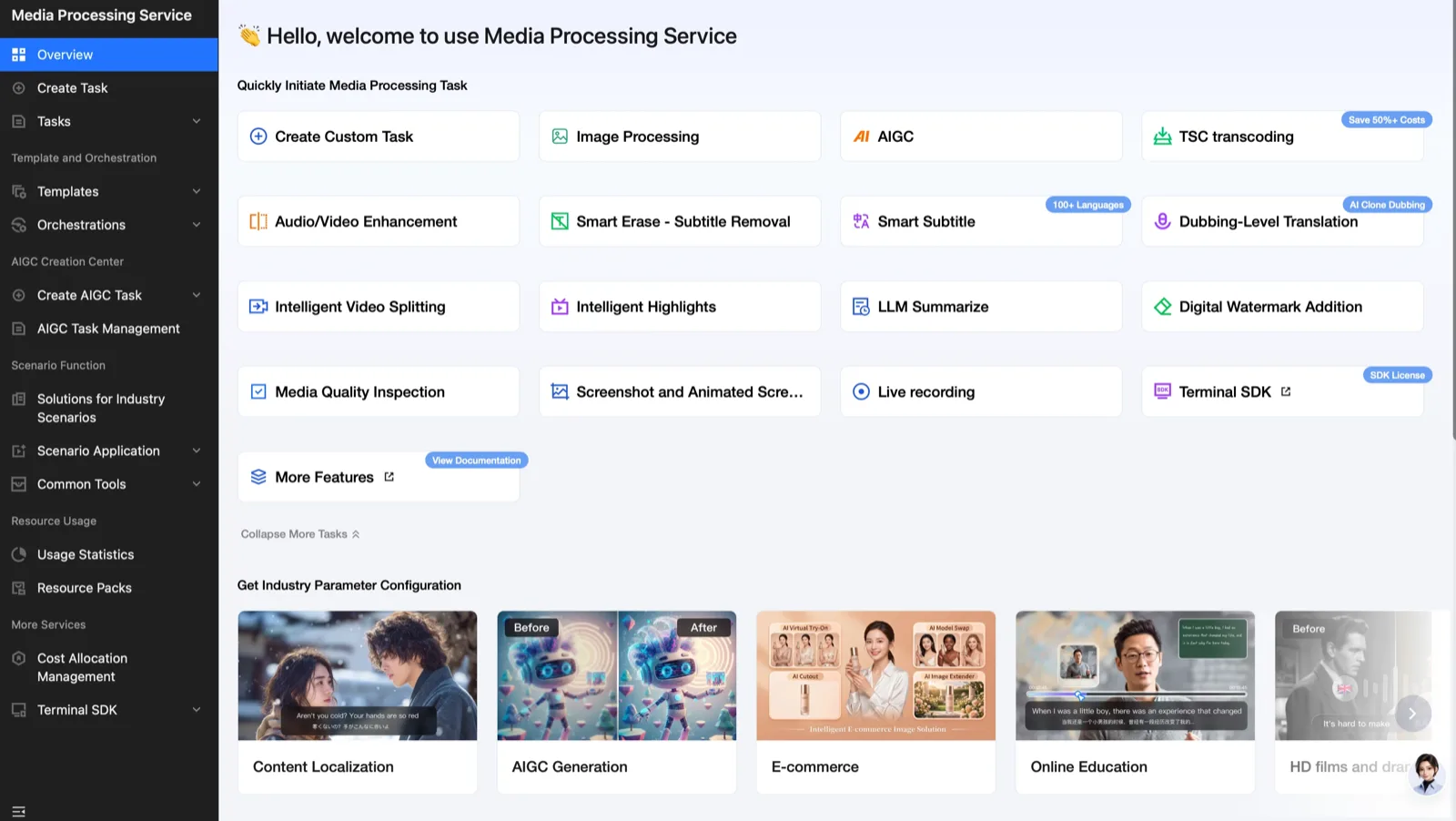
On this screen, you can press the button for the desired feature to move to the desired media processing screen more easily and quickly.
This page provides guidance on AI video generation.
1. General Video Generation
This is the console generally used when generating AI videos. Using various AI video models, you can easily generate videos at the desired length, resolution, and ratio. To get started, click the Create AIGC Task > AI Video page.
Writing a Prompt
Please select the desired model and generation method. Support for text/image/first and last reference image/reference image-based generation methods differs by model. Please check the details in the console.
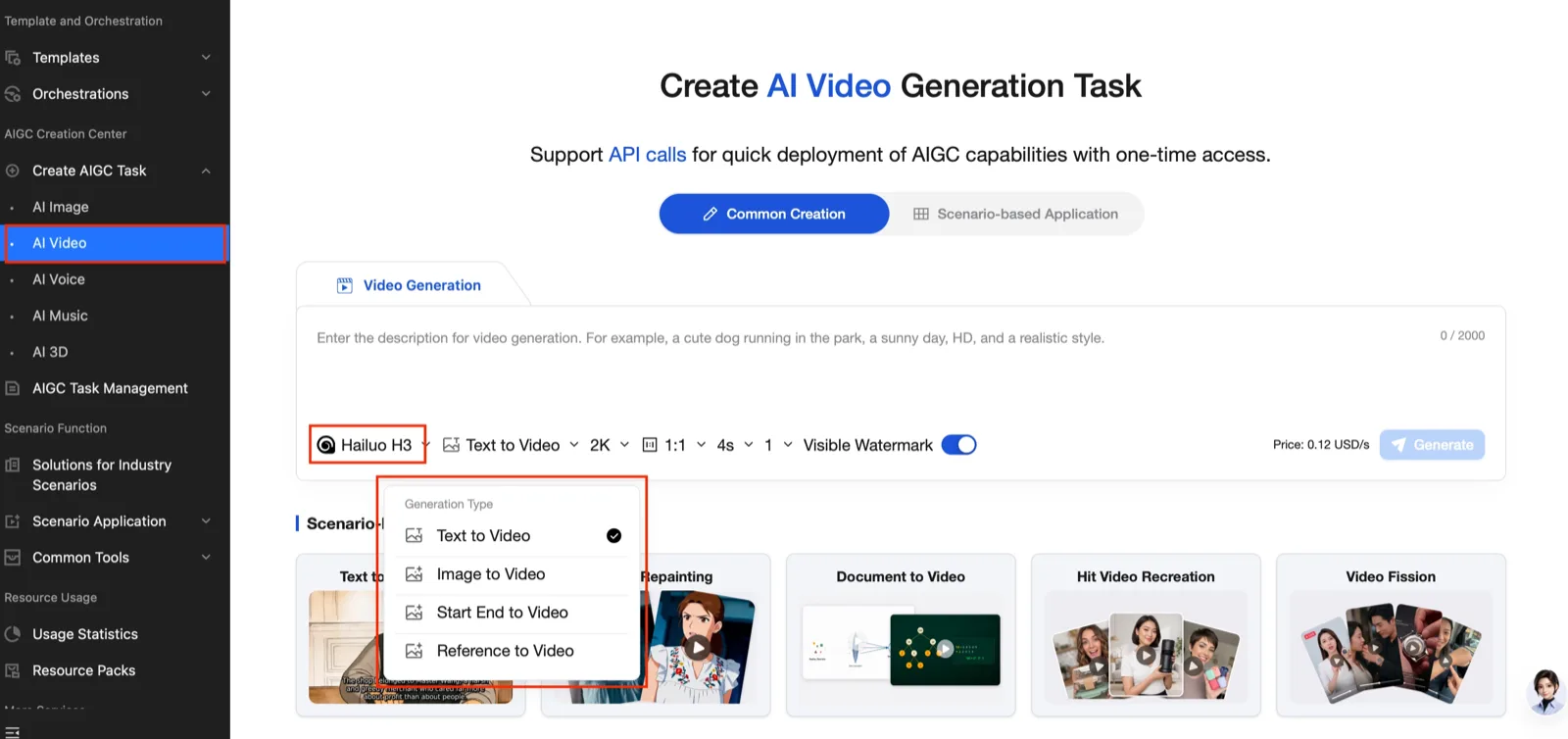
- Resolution: Supports
720P,768P,1080P,2K, and4K. This varies by model, so please check the console. - Ratio: Some models such as Jimeng 3.0pro, Video Model H2
1.0, and Video Model H21.1support ratio configuration. This varies by model, so please check the console. - Generation length: Supports a minimum of
1 secondto a maximum of16 seconds. This varies by model, so please check the console. - Audio: Some models support simultaneous audio generation. This varies by model, so please check the console.
- Watermark: The watermark generation feature is on by default. Please turn it off if you do not want it.
Checking Generation Results
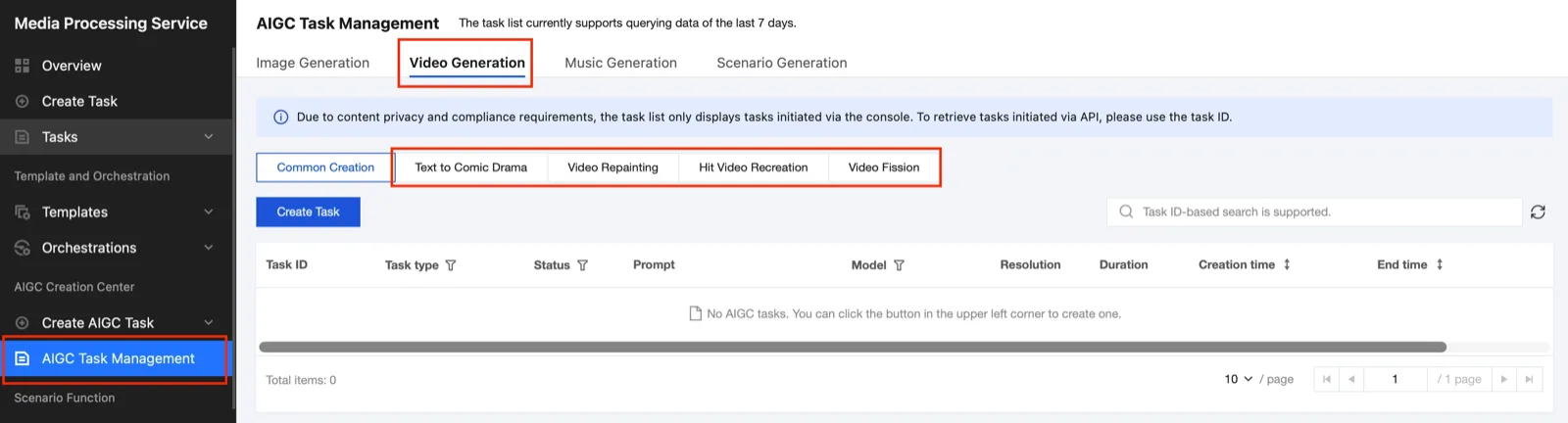
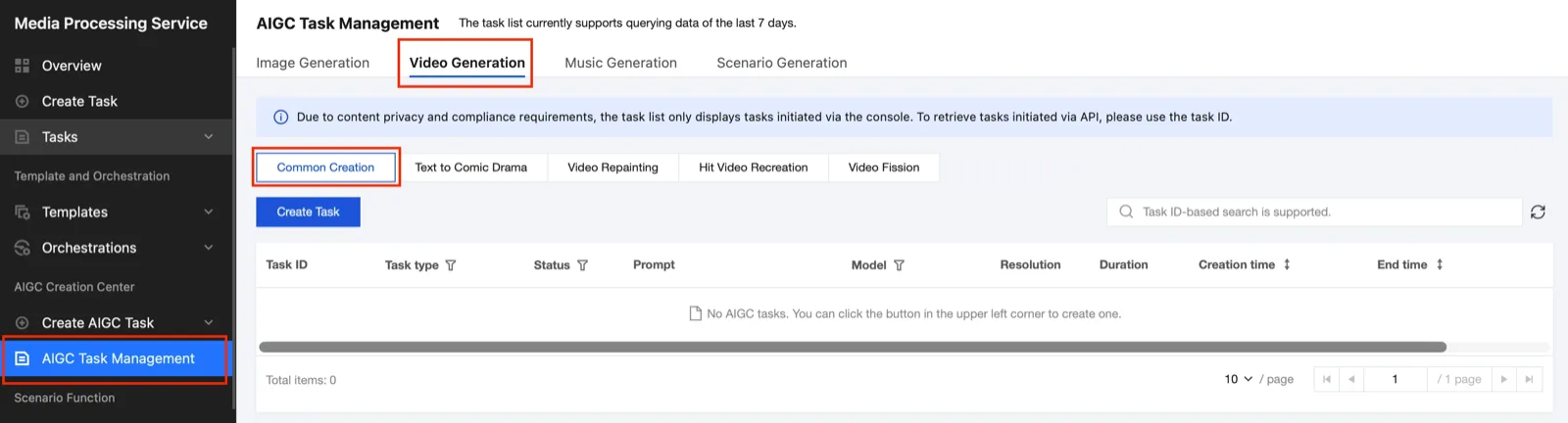
You can check the generation results in AIGC Task Magement > Video Generation > Common Creation.
2. Scenario-based Video Generation
If you want to generate a video based on MPS's own scenario templates rather than general video generation, click the Scenario-based Application tab. Currently, text-based animation generation, video style transformation, popular video regeneration, and AI person ad video generation scenarios are supported.
1) Text-based Animation Generation
Write a narration-style script with the content you want. For example, "During the Joseon Dynasty, there was a great physician named Heo Jun who lived in Hanyang. He lived alone, gathering medicinal herbs in the mountains and treating people. His life was simple, but comfortable. One day…"
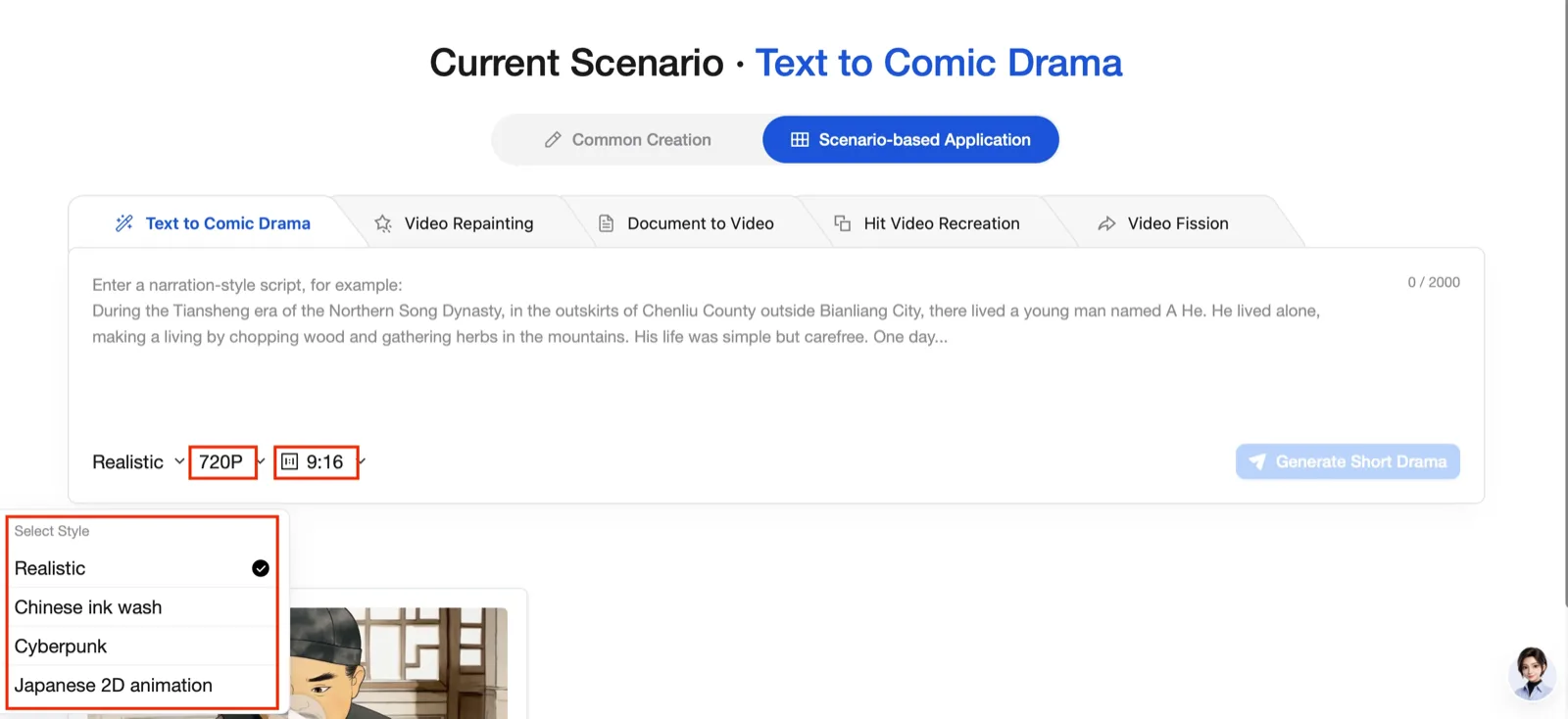
- Animation style: Live action, Chinese ink painting, cyberpunk, Japanese 2D animation
- Resolution:
720P,1080P - Ratio:
9:16,16:9
2) Video Style Transformation
Transform the video screen into the desired style. The video you want to transform can be input via local upload, upload from COS, or attaching a URL.
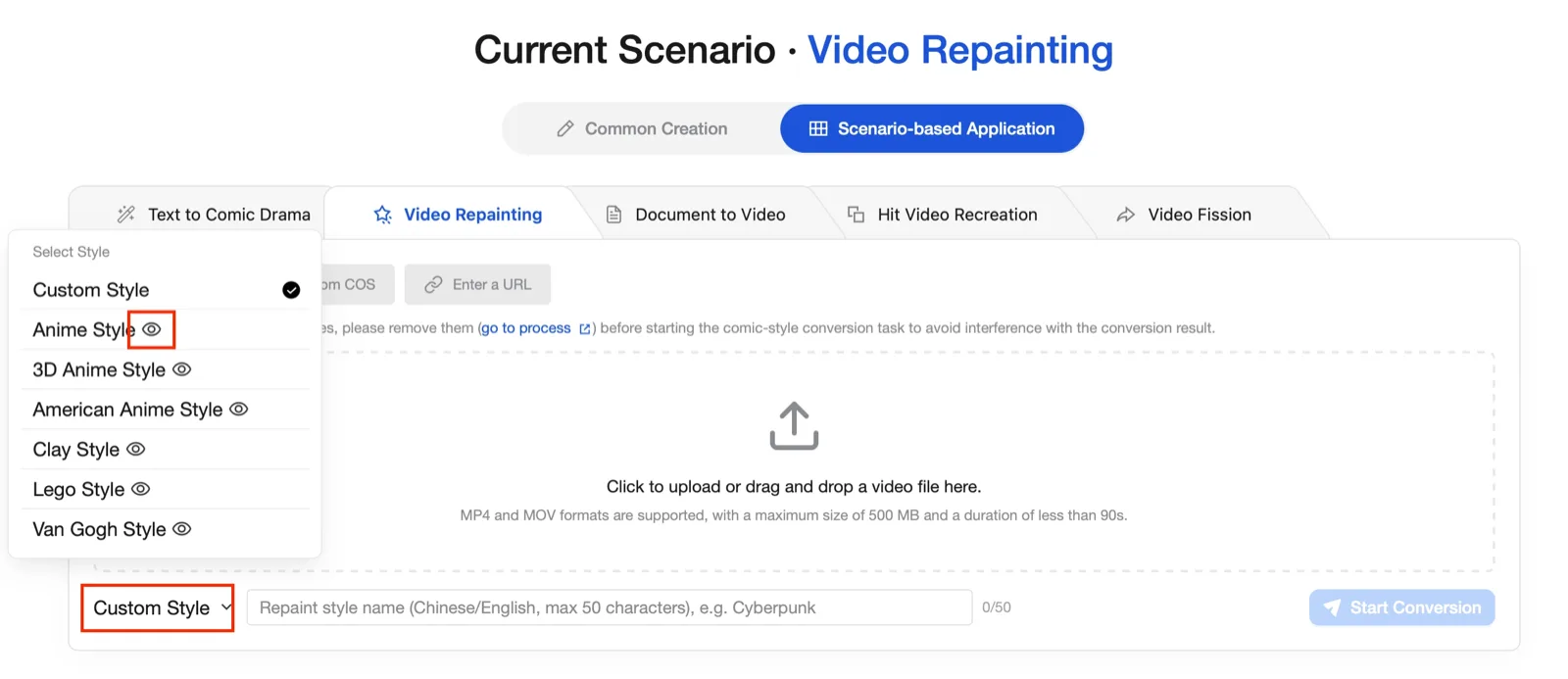
- Style: You can choose from custom, 2D animation, 3D animation, American animation, clay figure, Lego, and Van Gogh style.
Custom style: You can write the name of the desired style in Chinese or English within 50 characters.
Style preview: If you click the eye-shaped emoji next to the style name, you can view an example for each style.
3) Popular Video Regeneration
Regenerate popular viral videos in a similar style. Attach the popular viral video and the product to use as a reference, and write a detailed product description.
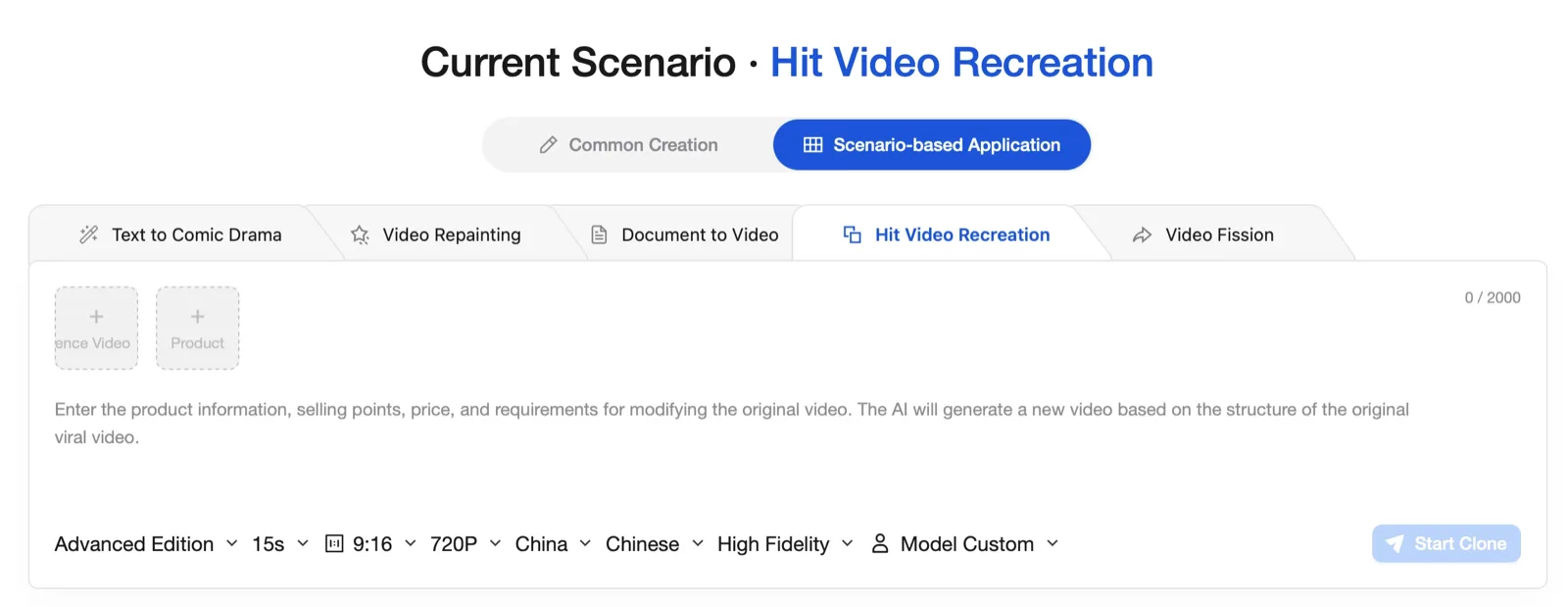
- Reference video: Attach the reference video to be referenced during generation.
- Product: Attach the product image you want to use in the video.
- Text prompt: Write the product information, selling points, price, and other requirements. AI will generate a new video based on the structure of the reference video.
- Generation model: Standard, Advanced
- Generation length:
4 seconds~15 seconds - Ratio:
9:16,16:1,1:1 - Resolution:
720P,1080P,2K,4K - Target country: China, North America, Europe, Japan, Korea, Southeast Asia, Brazil
- Generation language: Chinese, English, Japanese, Korean, Spanish, Portuguese, BGM without voice
- Reproduction similarity: High fidelity (faithful to the original), light adaptation (slight variation), moderate (medium variation), extensive (large variation)
- Custom model: You can specify an AI model. You can select gender, age, race, and body type. If you do not want to, AI will automatically match the person in the video and generate.
4) Ad Video Generation
You can easily generate the desired ad video based on the product image and information.
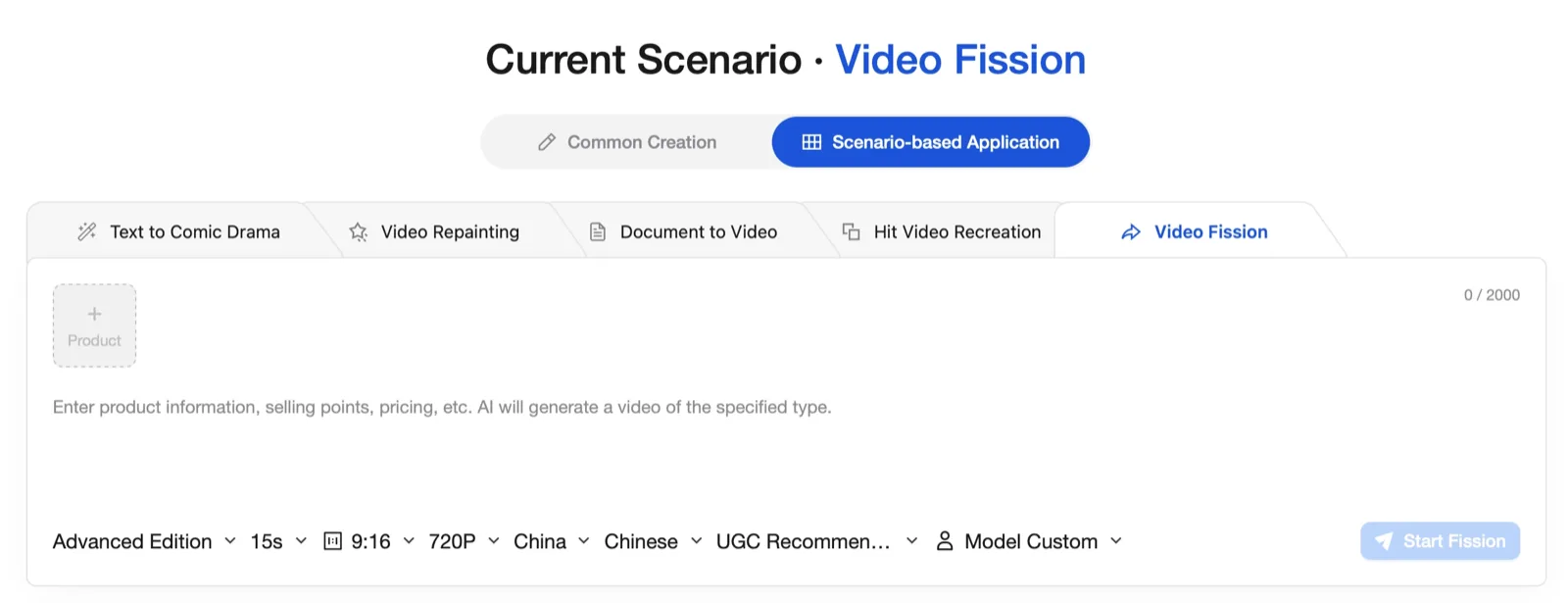
Product: Attach the product image you want to use in the video.
Text prompt: Write the product information, selling points, price, and other requirements. AI will generate an ad video based on that information.
Generation model: Standard, Advanced
Generation length:
4 seconds~15 secondsRatio:
9:16,16:1,1:1Resolution:
720P,1080P,2K,4KTarget country: China, North America, Europe, Japan, Korea, Southeast Asia, Brazil
Generation language: Chinese, English, Japanese, Korean, Spanish, Portuguese, BGM without voice
Video type
- UGC recommendation: Sharing real usage reviews from the user's perspective
- Product dubbing: Explaining the product's selling points in front of the camera
- Product display: Product description from various angles
- Unboxing review: Unboxing and product review sharing from a
1person perspective - Reaction: A reaction video of amazement at the moment of first using the product
Custom model: You can specify an AI model. You can select gender, age, race, and body type. If you do not want to, AI will automatically match the person in the video and generate.
Checking Generation Results
You can check the generation results for each scenario by selecting the tab of the scenario you generated in AIGC Task Magement > Video Generation.