
MPS Console - Voice
1. Text-based Voice Generation (TTS)
Enter the desired lines and select emotion, speed, pitch, volume, etc. to easily create a voice.
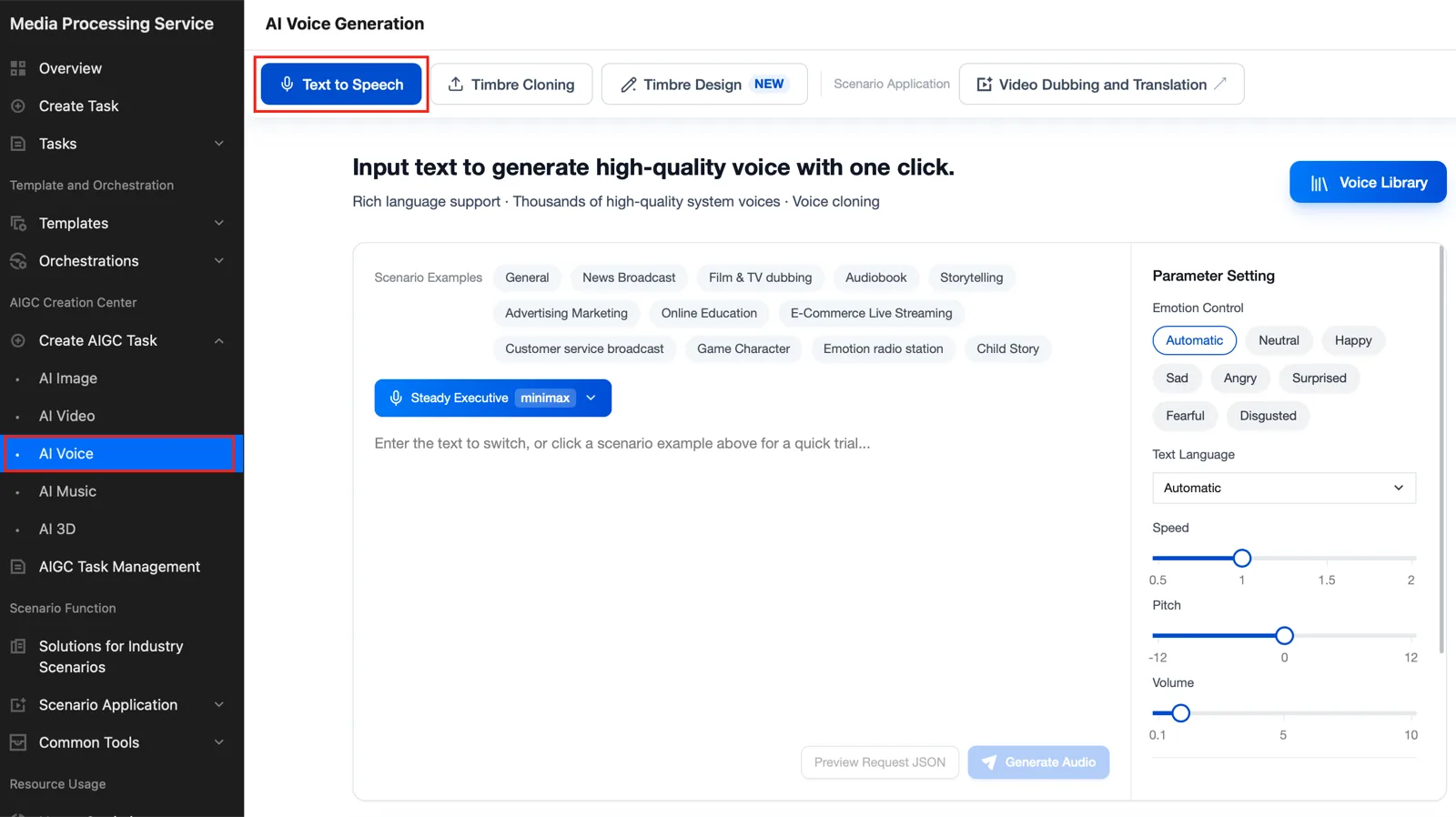
- Emotion control: If you set it to Automatic mode, the voice is generated with an emotion automatically suited to the text. Please select it if you want more delicate emotional expression.
- Text language: If you write in a language other than Chinese, please set it to Automatic.
- Speed:
0.5 ~ 2x - Voice pitch: -12 ~
12 - Volume:
0.1 ~ 10
Voice Library
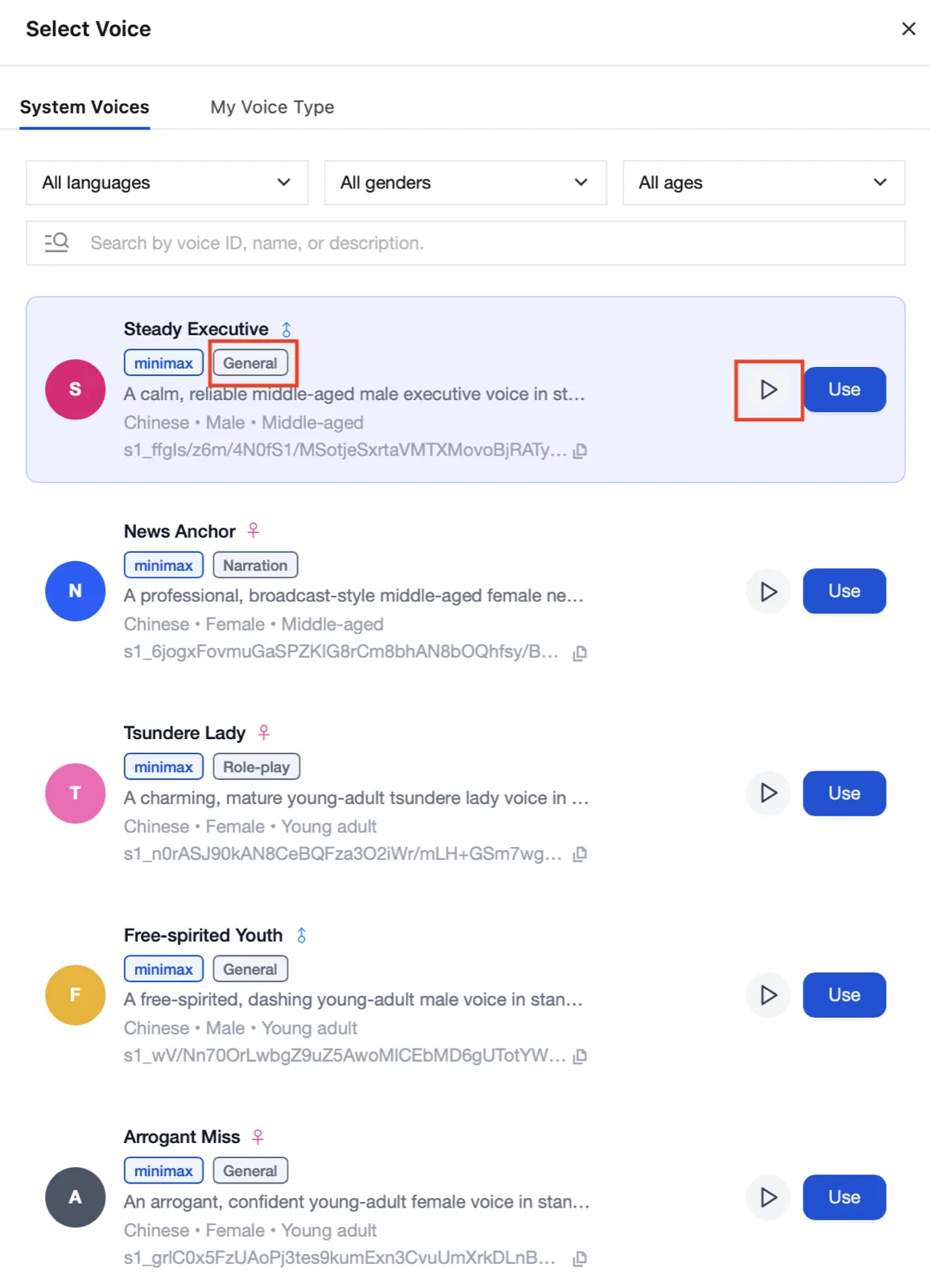
- Language: Supports multiple languages including Korean, Chinese, English, Japanese, Indonesian, Vietnamese, and Thai
- Gender: Female, Male
- Age: Child, Adolescent, Youth, Middle-aged, Senior
You can check through the gray box which scenes the voice is suitable for.
If you want to preview the tone of the voice, you can press the play button to listen to it.
2. Voice Cloning
To generate natural TTS based on the voice the user wants, you can use the voice cloning feature.
Please upload the voice you want to clone via a local file or a URL link. If you upload via URL, you must use a URL that is publicly accessible and directly downloadable.
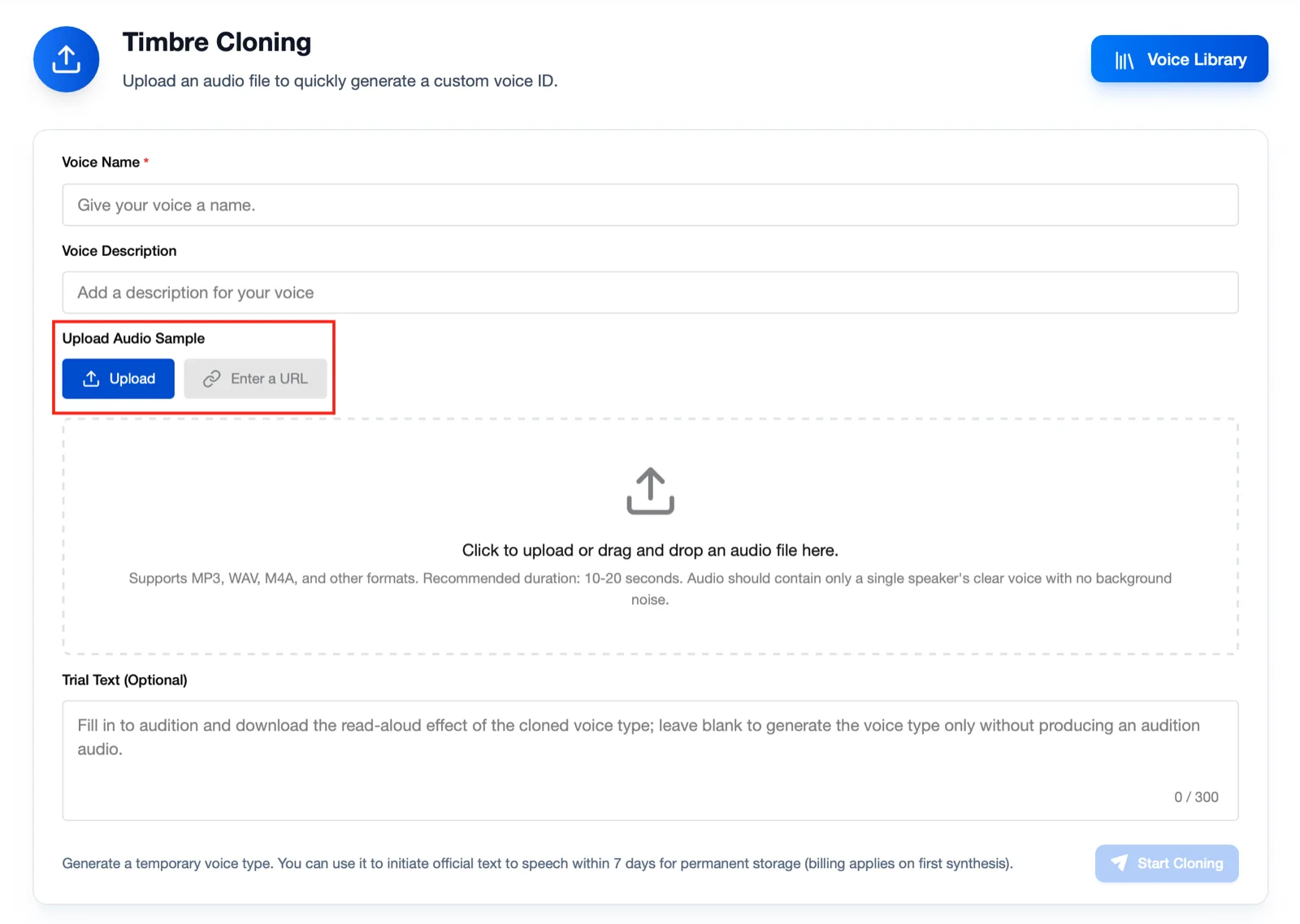
- Voice name: Please enter the desired voice name
- Voice description: Please write a description of the voice.
- Trial text: The cloned voice will be generated with those text lines.
Checking Cloned Voice Generation
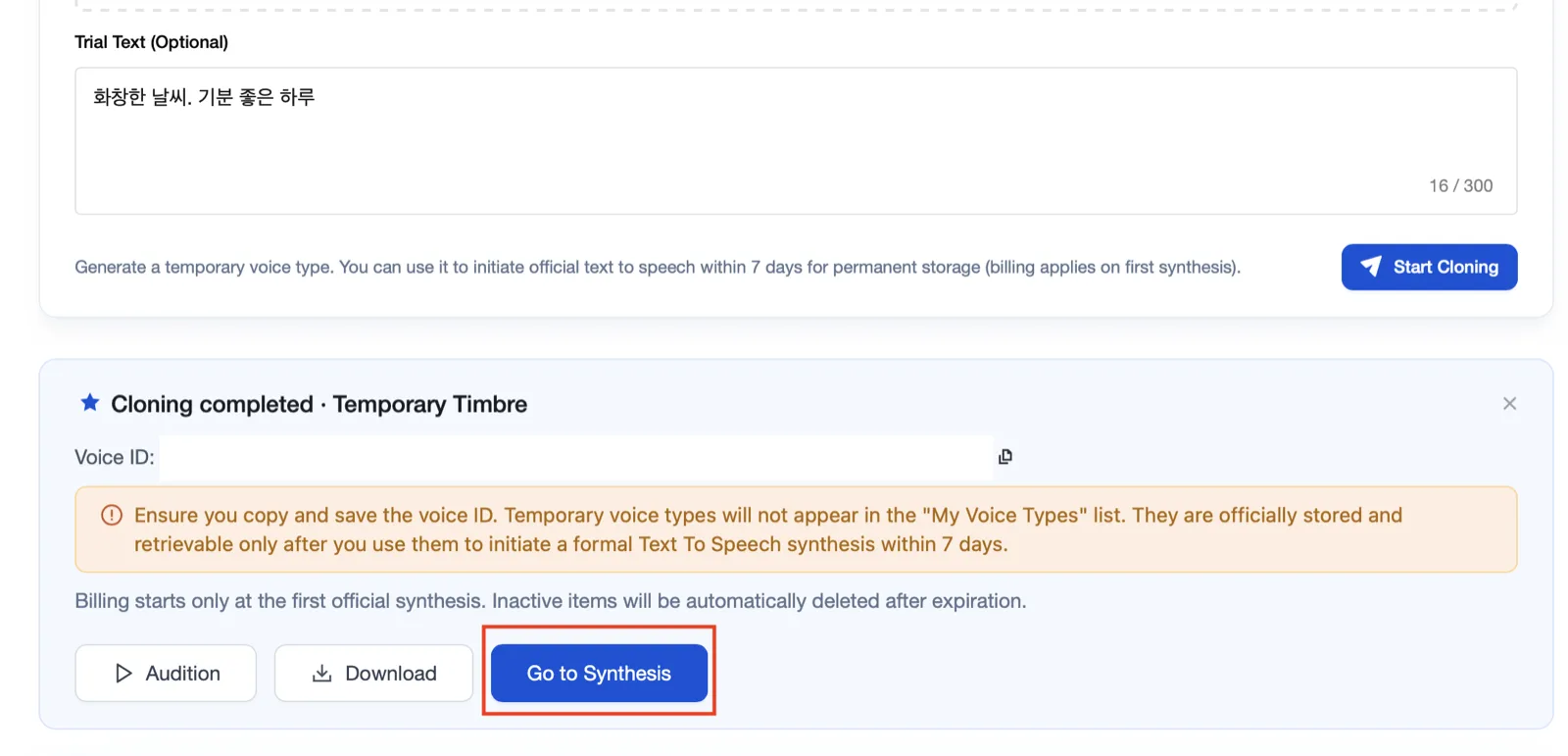
You can listen to the generated voice by pressing the Audition button.
If you want to write a detailed prompt with emotional expression, lines, etc. using that voice right away and generate TTS, please press the Go to Synthesis button
The VoiceId from the cloning completion response is used in the voice generation request.
If you want additional TTS generation with that cloned voice, please go to the prompt screen with that voice applied via the Go to Synthesis button.
3. Voice Design
You can newly design and use the voice you want. Please write about the voice style you want in the prompt.
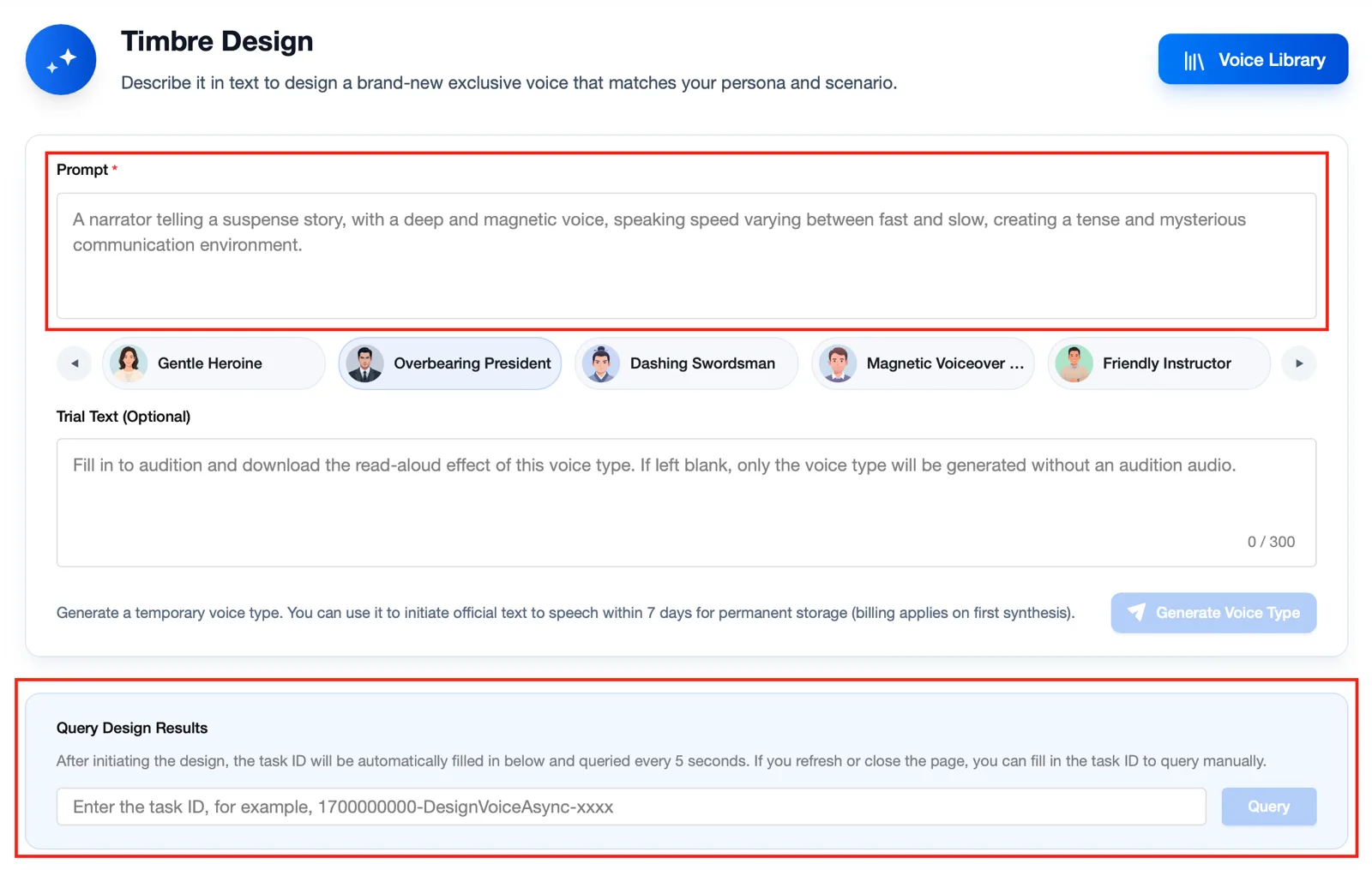
You can check the generation results in Query Design Results at the bottom.
Checking Voice Design Generation
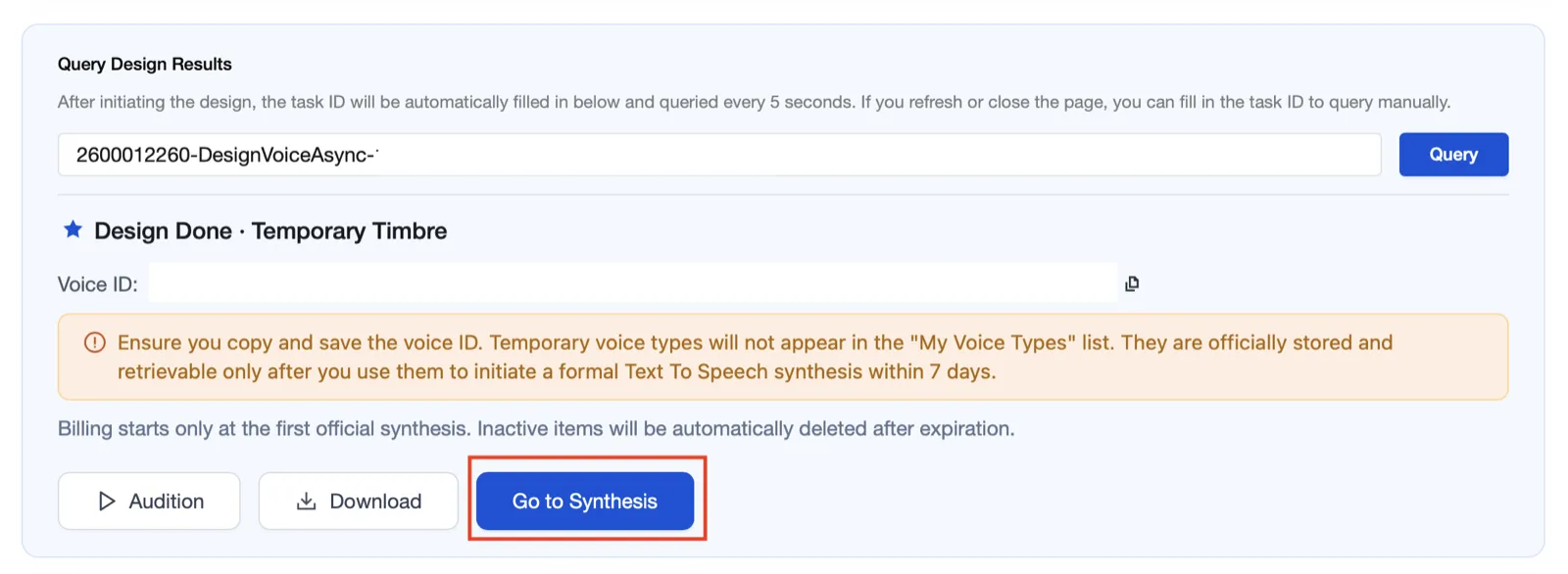
You can listen to the generated voice by pressing the Audition button.
If you want to write a detailed prompt with emotional expression, lines, etc. using that voice right away and generate TTS, please press the Go to Synthesis button
The VoiceId from the voice design completion response is used in the voice generation request.
If you want additional TTS generation with that designed voice, please go to the prompt screen with that voice applied via the Go to Synthesis button.