
VOD Console - Image
1. Generating images in the Default Application
If you simply want to generate images quickly and save the output locally or to the Default Application, following this procedure is fine. However, if you want to separate tasks and store images in a specific Application within VOD, see the 2. Generating images within a specific Application section.
1) General image generation
If you want to quickly generate images from text or images, click the AI Generation > AI Images page.
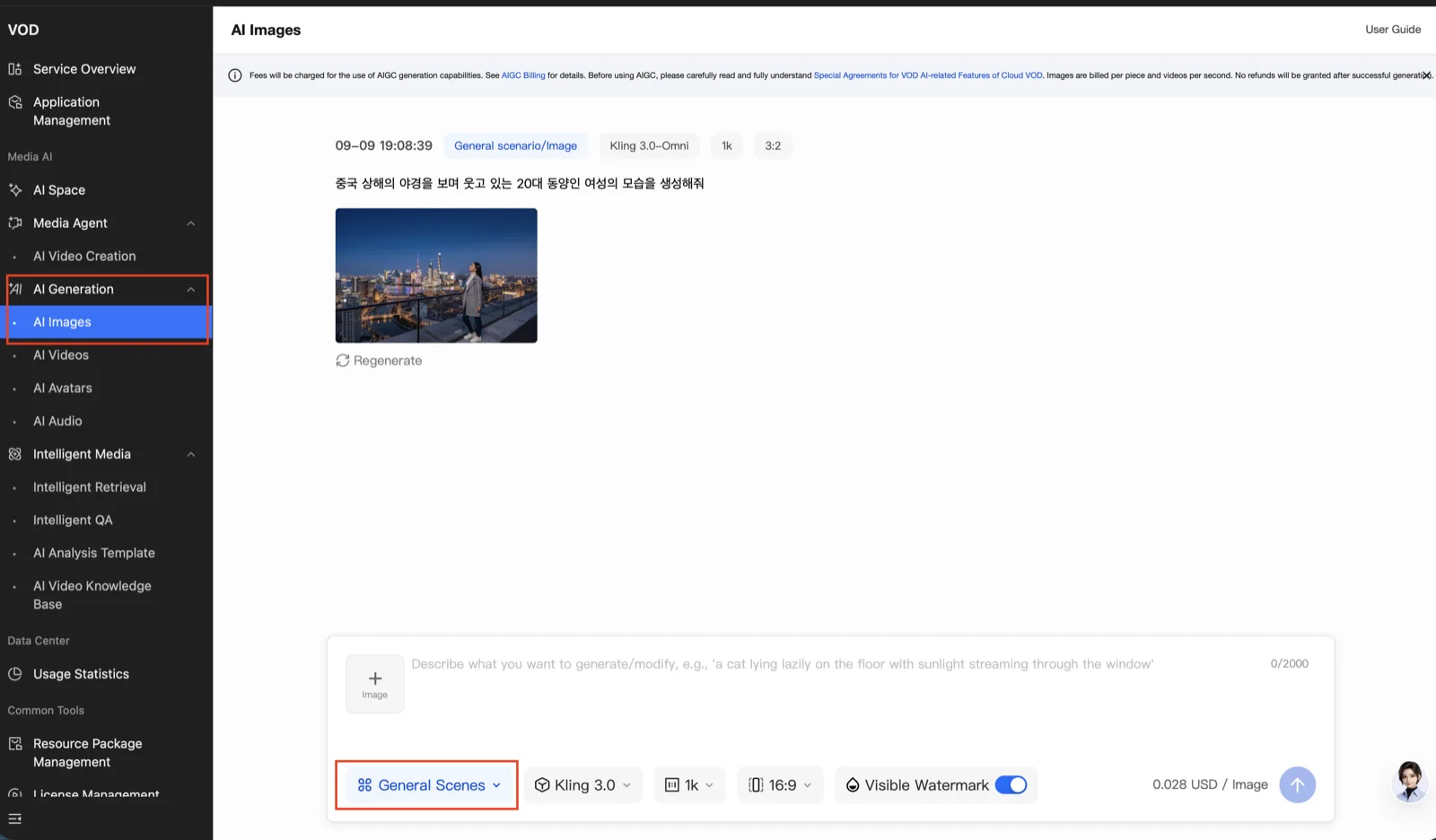
- Scenario : general scenes, e-commerce scenarios
- Models : for general scene generation, a variety of models can be selected
- Resolution :
1K,2K,4K - Ratio :
1:1,3:2,2:3,3:4,4:3,9:16,16:9,21:9 - Watermark : a watermark is generated by default. Turn it off if you do not want one.
| Model abbreviation | Actual model name |
|---|---|
| GG | Google Nano banana |
| SI | Seedream |
| OG-image2 | GPT-Image2 |
2) Scenario-based
Currently, e-commerce is the only supported scenario. If you want to generate images for use in e-commerce, select that scenario.
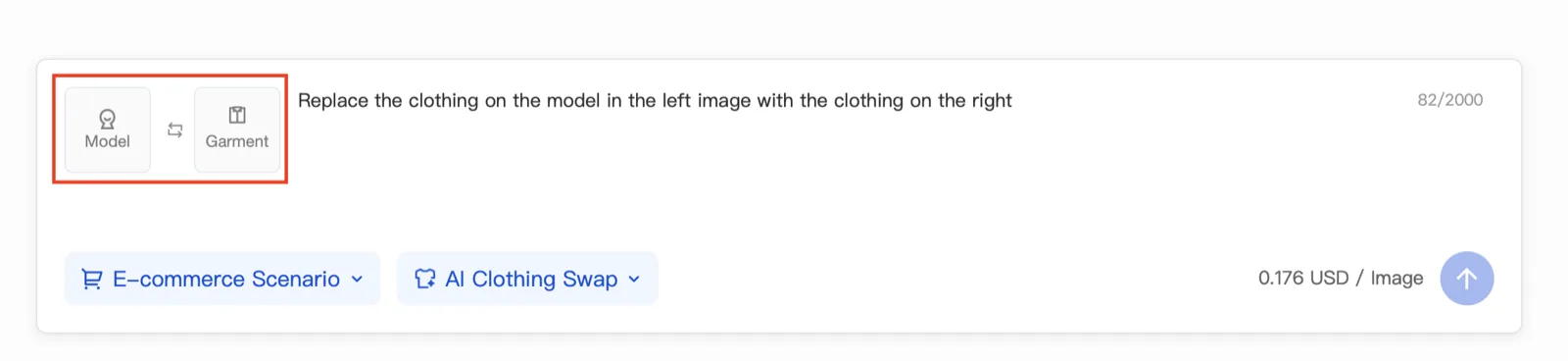
- Supported features : AI model outfit swap, AI background replacement
- Reference images : attach the reference images you want — model, product, and so on — to match each feature.
- Ratio : currently only AI background replacement supports various ratio settings.
Checking the generation result
You can check the generation result directly in the prompt chat window. If you want to download it locally or save it to an Application within VOD, click the generated image.
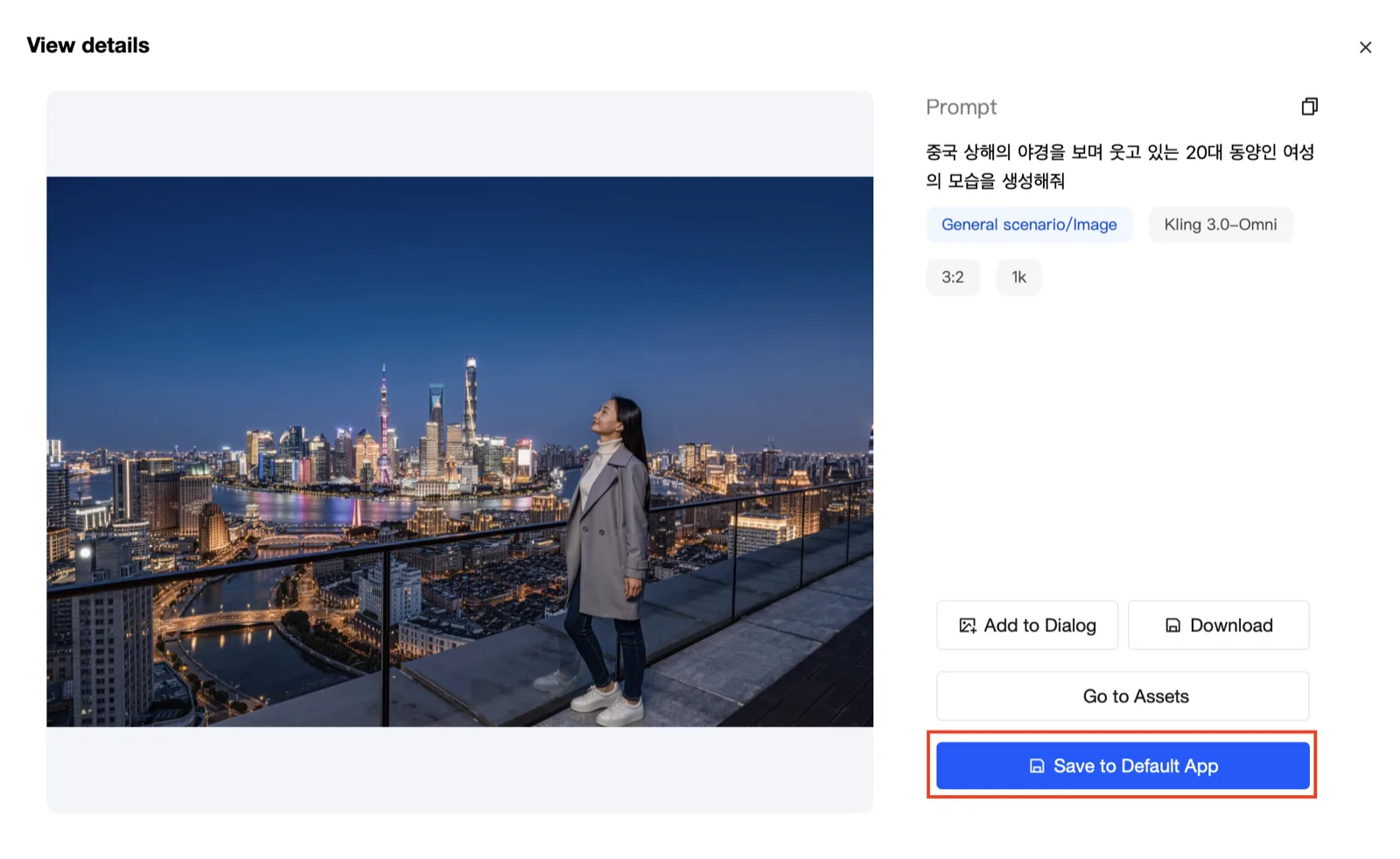
- Add to Dialog : the generated image is attached directly as a reference image for the prompt.
- Download : you can download it to your local computer.
- Go to Assets : goes to the Default Application management page.
- Save to Default App : saves it to the Application set as the default.
If you want generation and storage separated by user or by task, see the 2. Generating images within an Application section.
2. Generating images within a specific Application
If you want generation and storage separated per user or per task, search for the Application name you want in VOD Console > Application Management, click it, and enter that Application's page.
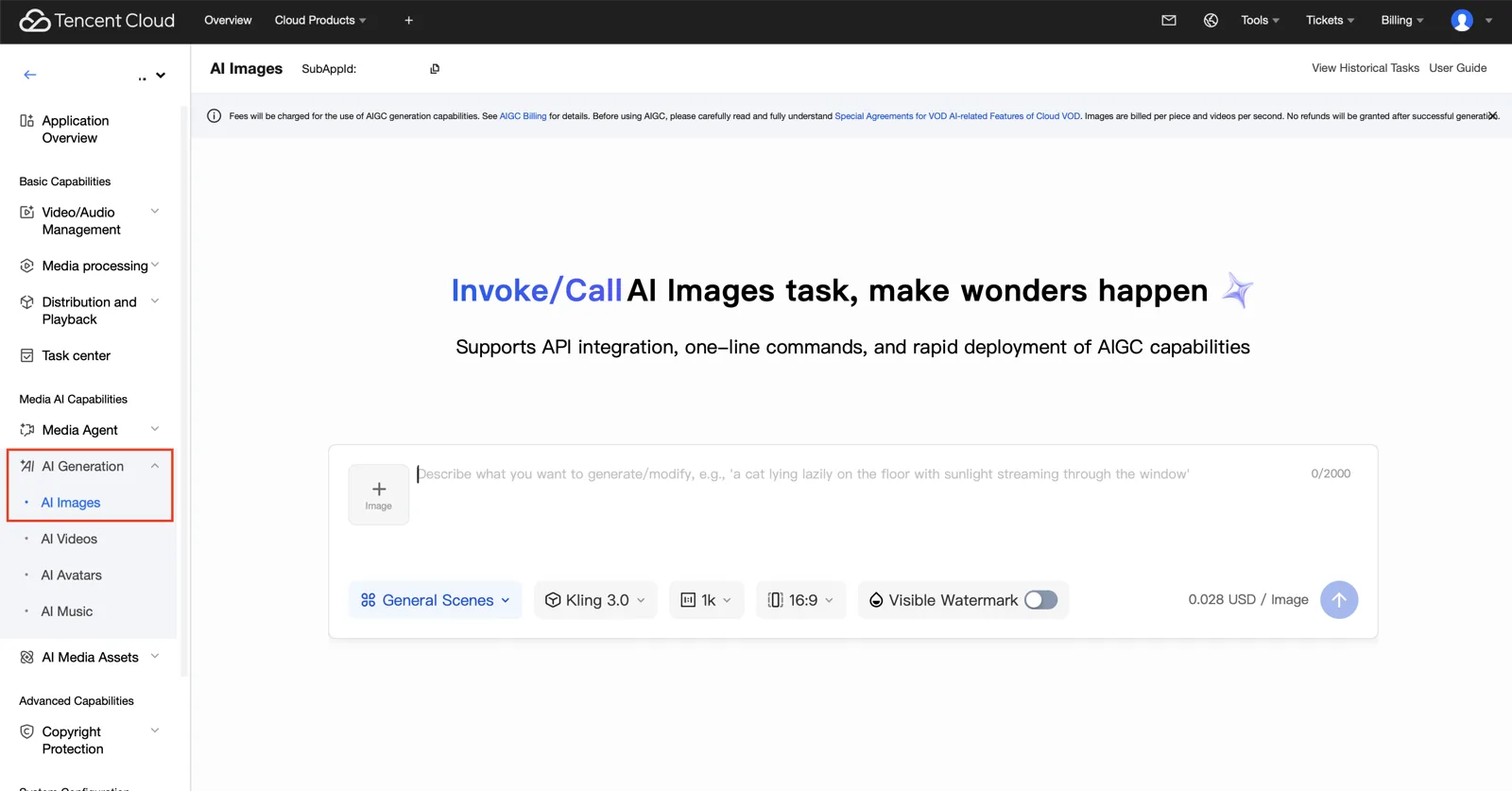
On the Application's internal page, click AI Generation > AI Images.
- Scenario : general scenes, e-commerce scenarios
- Models : for general scene generation, a variety of models can be selected
- Resolution :
1K,2K,4K - Ratio :
1:1,3:2,2:3,3:4,4:3,9:16,16:9,21:9 - Watermark : a watermark is generated by default. Turn it off if you do not want one.
| Model abbreviation | Actual model name |
|---|---|
| GG | Google Nano banana |
| SI | Seedream |
| OG-image2 | GPT-Image2 |
Checking the generation result
You can check the generation result directly in the prompt chat window. If you want to download it locally or save it to an Application within VOD, click the generated image.
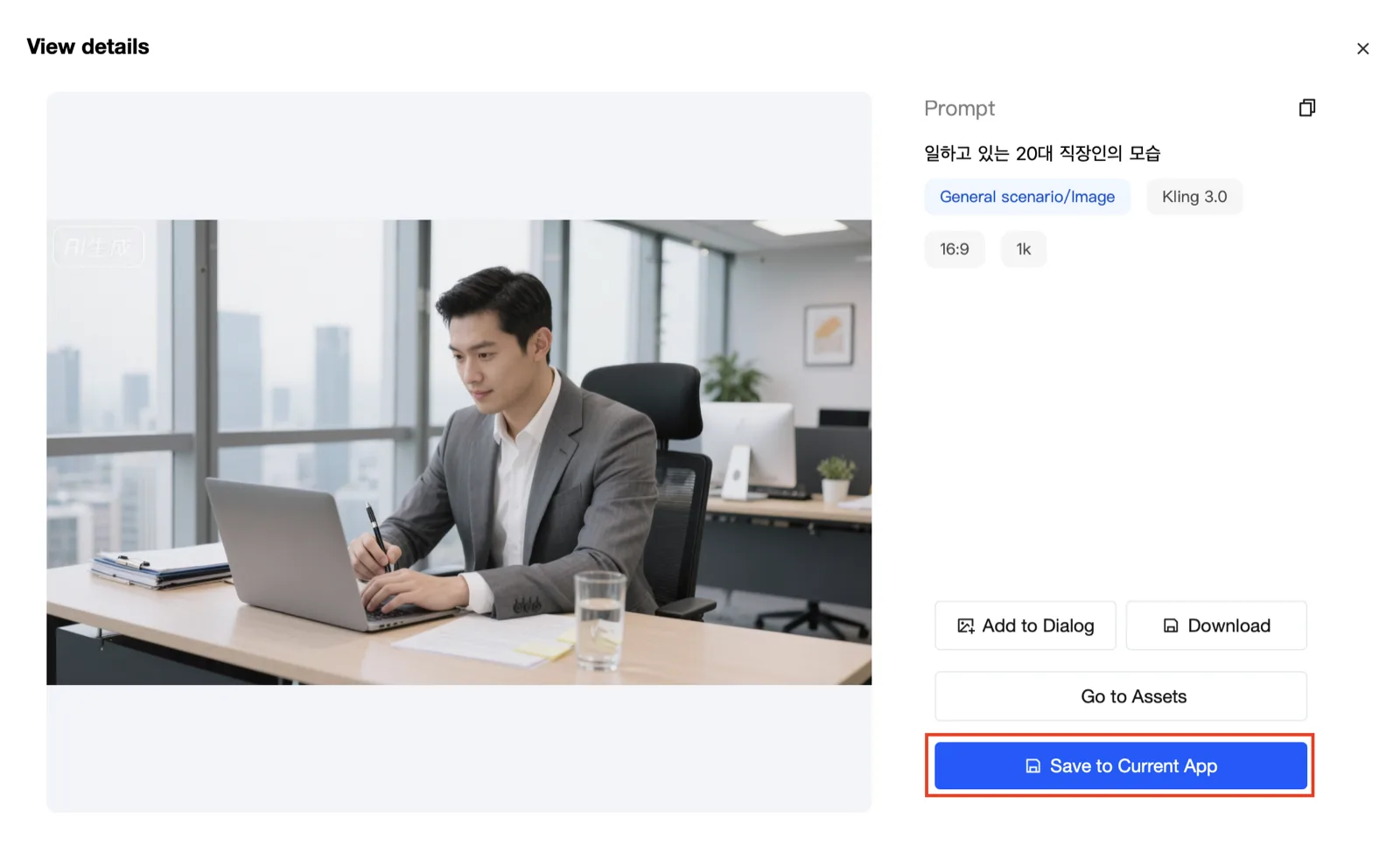
- Add to Dialog : the generated image is attached directly as a reference image for the prompt.
- Download : you can download it to your local computer.
- Go to Assets :goes to that Application's management page.
- Save to Current App : saves it to the Application you selected.
Go to that Application page > Image Management to see the stored images.
Inside the generated folder, f0.png is the generated image. coverBySnapshot is the cover image, and you can see that its resolution is relatively low.