
VOD Console - Video
1. Generating video in the Default Application
If you simply want to generate video quickly and save the output locally or to the Default Application, following this procedure is fine. However, if you want to separate tasks and store video in a specific Application within VOD, see the 2. Generating video within a specific Application section.
General video generation
If you want to quickly generate video from text or images, click the AI Generation > AI Video page.
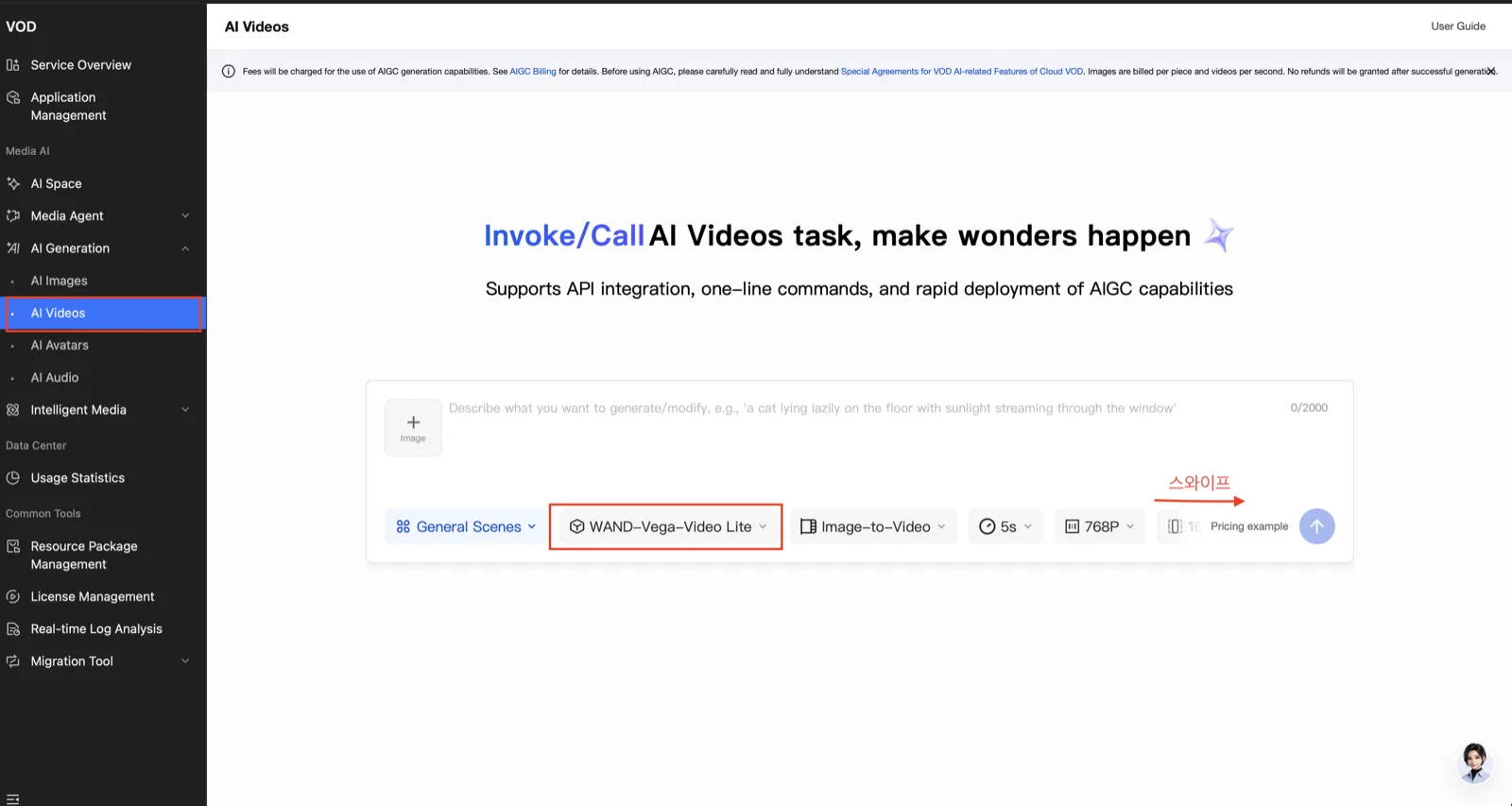
- Scenario : general scenes, e-commerce scenarios, changing the animation style of the video image
- Models : for general scene generation, a variety of models can be selected
- Generation modes : Image-to-Video, reference-based, First/Last frame generation. These differ by model, so check the console.
- Generation length :
4–15seconds. This differs by model, so check the console. - Resolution :
720P,1080P,2K, 4K. This differs by model, so check the console. - Ratio :
1:1,4:3,21:9,16:9,3:4,9:16These differ by model, so check the console. - Audio : turn this feature on if you want audio generated at the same time. Support differs by model, so check the console.
- Watermark : a watermark is generated by default. Turn it off if you do not want one. This differs by model, so check the console.
- Prompt optimization : when this feature is on, the user's generation intent is analyzed and the prompt is optimized before generation. Supported only on WAND-Vega models.
| Model abbreviation | Actual model name |
|---|---|
| GV | Veo |
Selecting a reference image
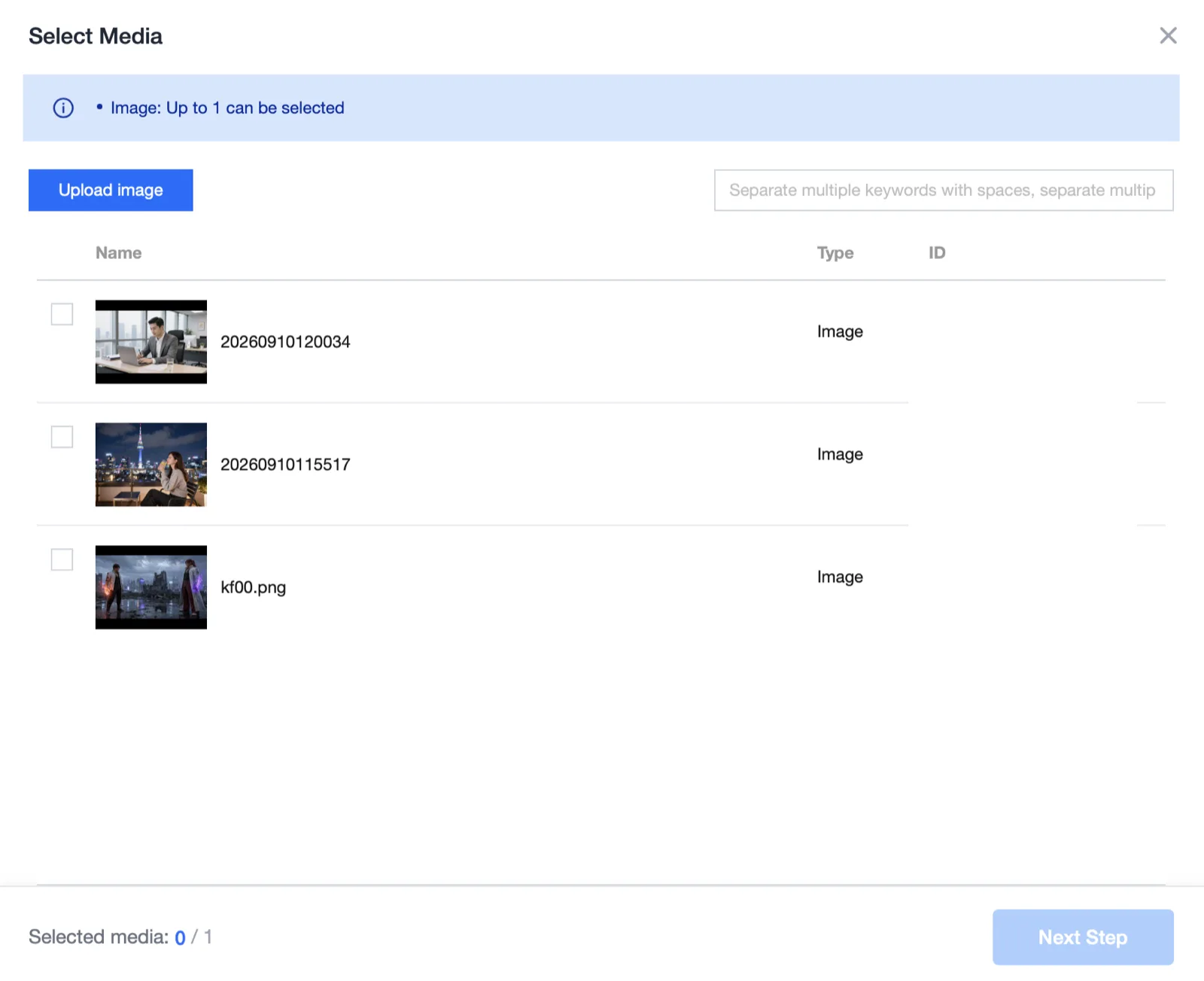
If you want to attach a reference image for the generation to refer to, click the Image box inside the prompt.
You can choose from the media stored in the Default Application. If you want to generate based on another image, upload the material with Upload Image.
Checking the generation result
You can check the generation result directly in the prompt chat window. If you want to download it locally or save it to an Application within VOD, click the generated video.
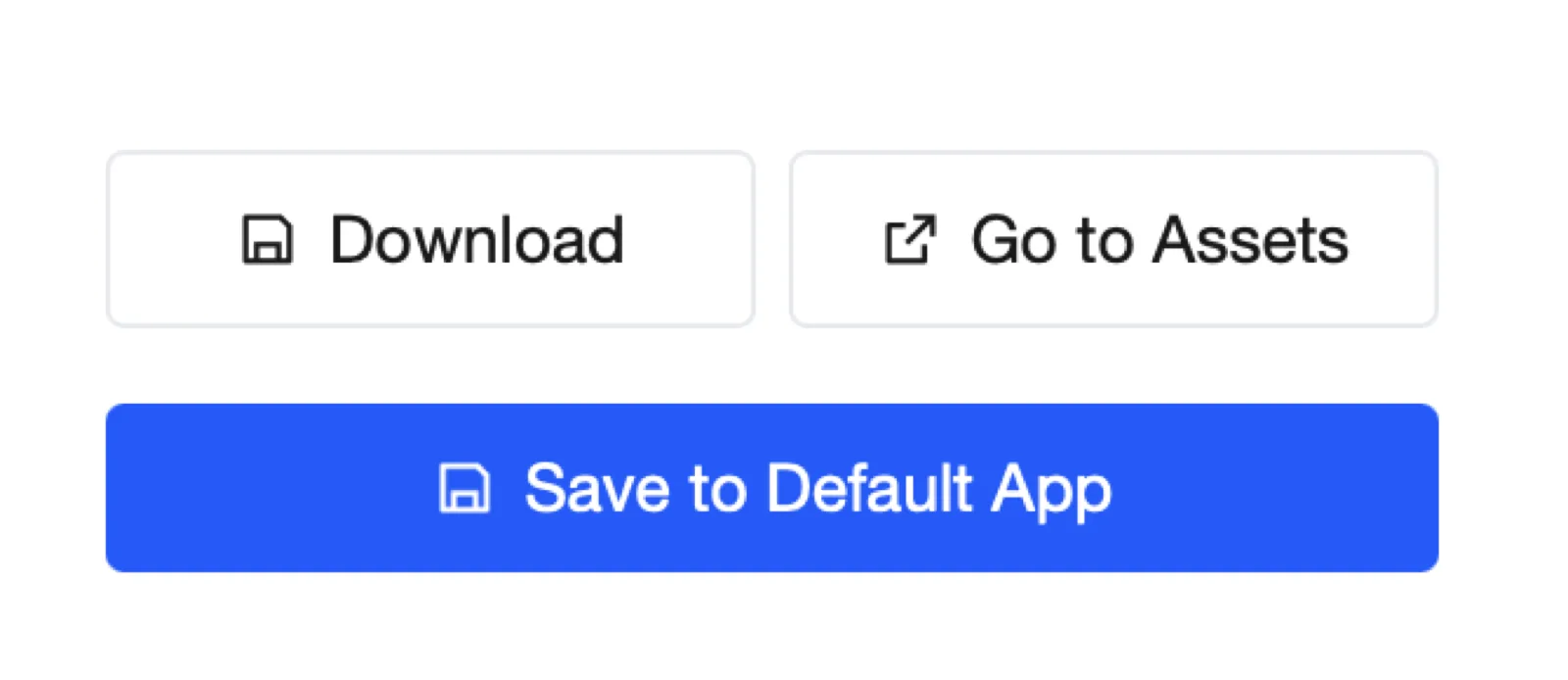
- Download : you can download it to your local computer.
- Go to Assets : goes to the Default Application management page.
- Save to Default App : saves it to the Application set as the default.
If you want generation and storage separated by user or by task, see the 2. Generating video within a specific Application section.
2. Generating video within a specific Application
If you want generation and storage separated per user or per task, search for the Application name you want in VOD Console > Application Management, click it, and enter that Application's page.
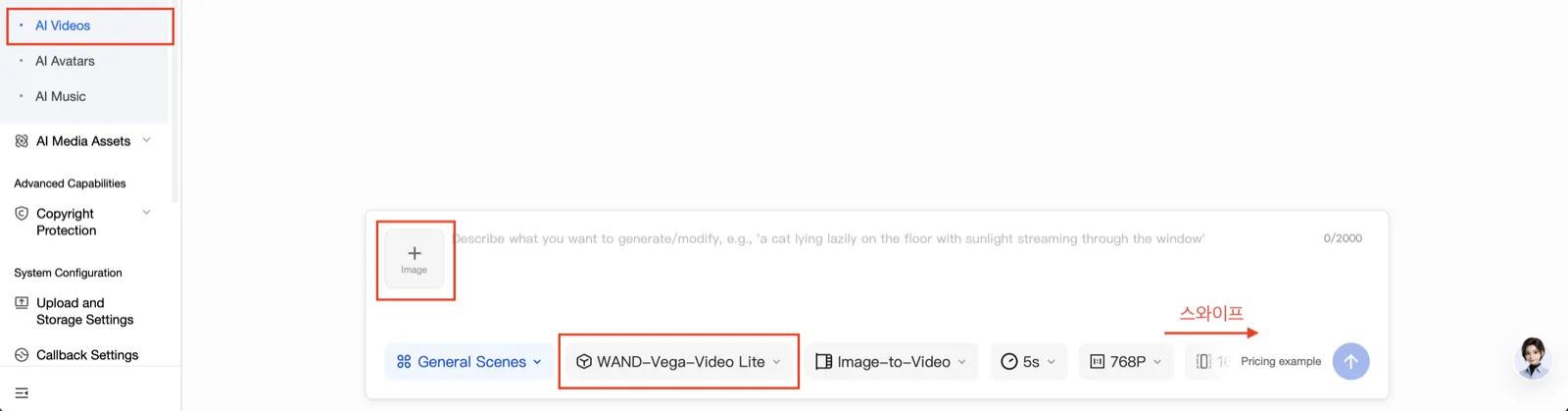
On the Application's internal page, click AI Generation > AI Videos.
- Scenario : general scenes, e-commerce scenarios, changing the animation style of the video image
- Models : for general scene generation, a variety of models can be selected
- Generation modes : Image-to-Video, reference-based, First/Last frame generation. These differ by model, so check the console.
- Generation length :
4–15seconds. This differs by model, so check the console. - Resolution :
720P,1080P,2K, 4K. This differs by model, so check the console. - Ratio :
1:1,4:3,21:9,16:9,3:4,9:16These differ by model, so check the console. - Audio : turn this feature on if you want audio generated at the same time. Support differs by model, so check the console.
- Watermark : a watermark is generated by default. Turn it off if you do not want one. This differs by model, so check the console.
- Prompt optimization : when this feature is on, the user's generation intent is analyzed and the prompt is optimized before generation. Supported only on WAND-Vega models.
| Model abbreviation | Actual model name |
|---|---|
| GV | Veo |
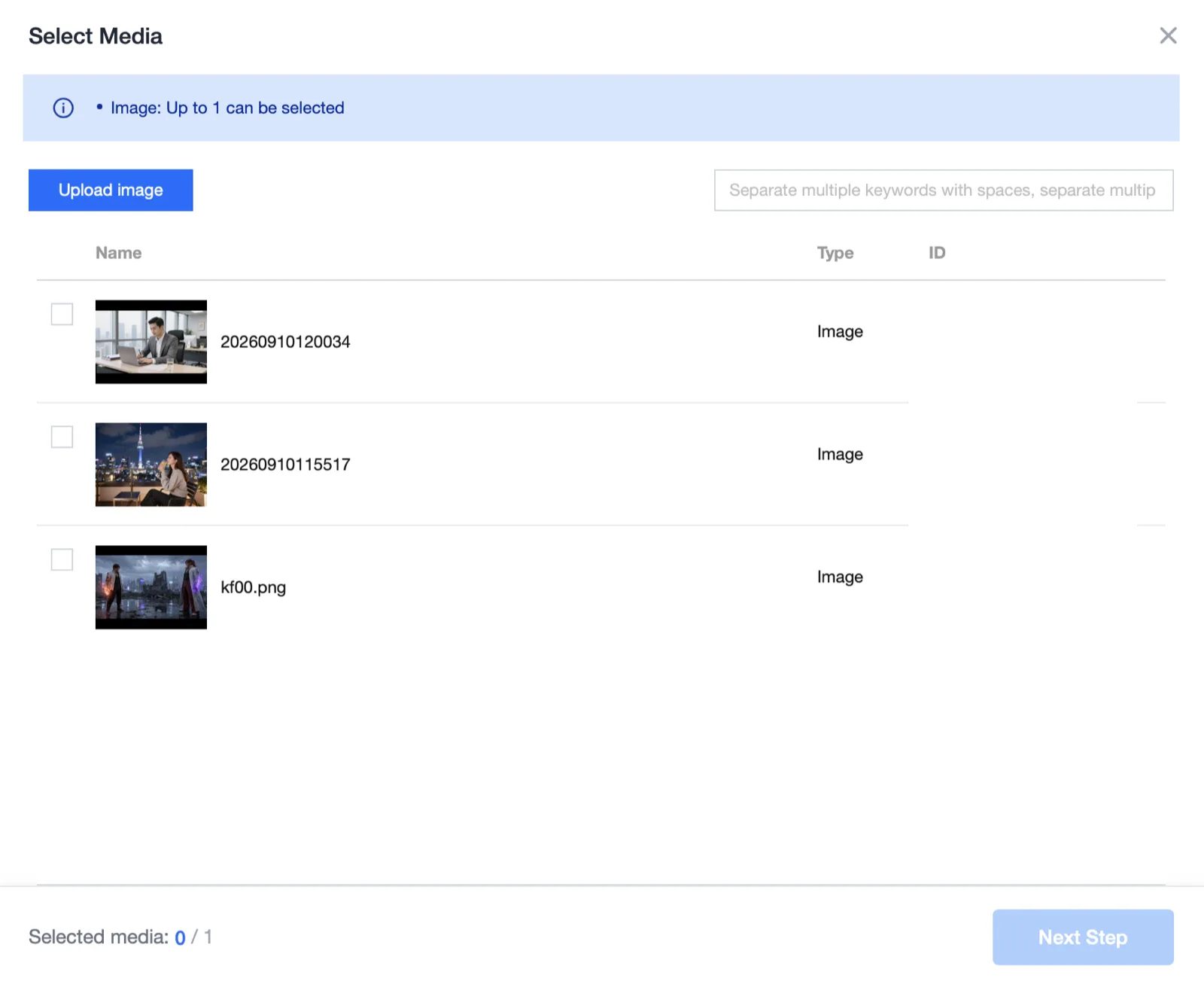
Selecting a reference image
If you want to attach a reference image for the generation to refer to, click the Image box inside the prompt.
You can choose from the media stored in that Application. If you want to generate based on another image, upload the material with Upload Image.
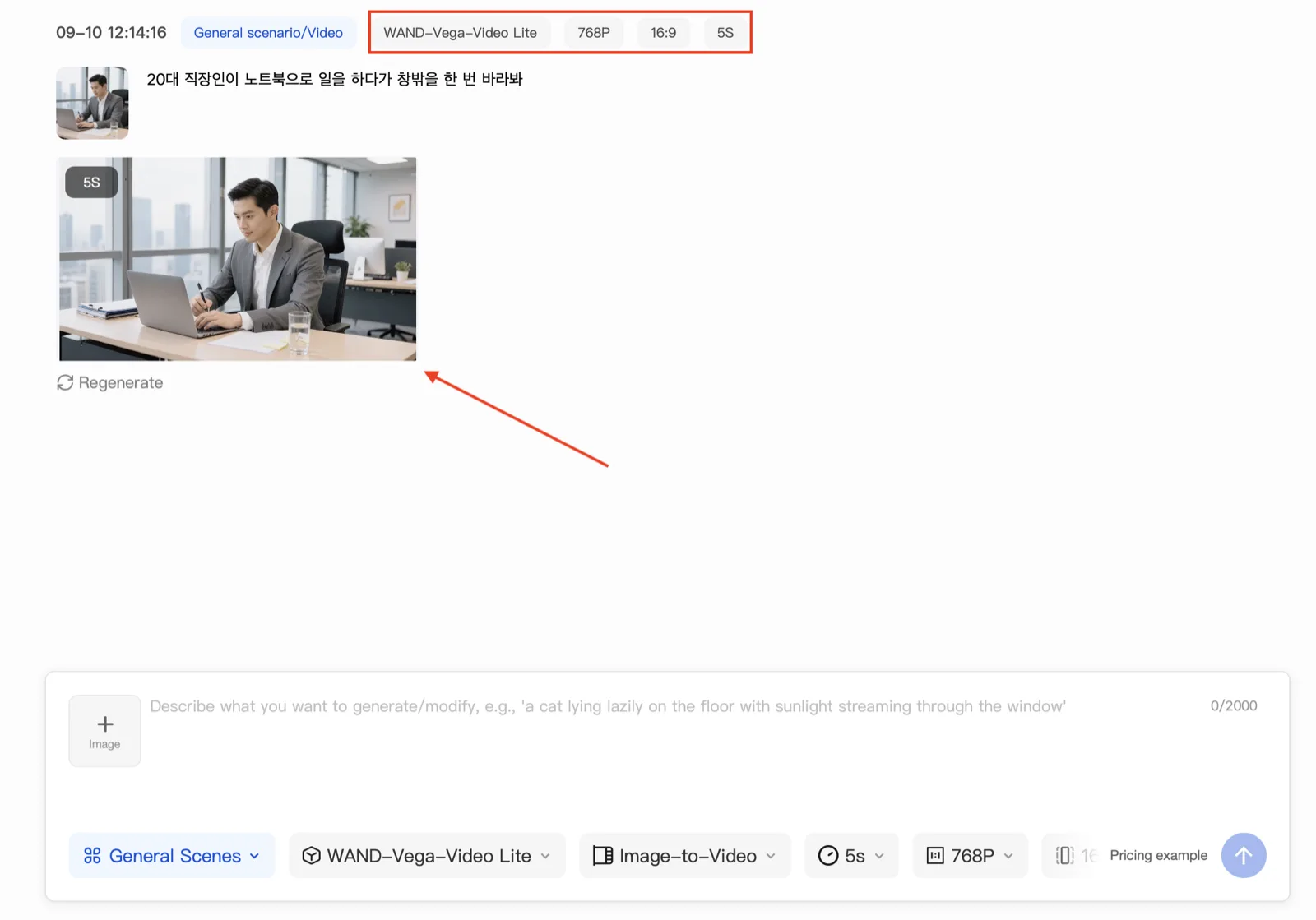
Checking the generation result
You can check the generation result directly in the prompt chat window. If you want to download it locally or save it to an Application within VOD, click the generated video.
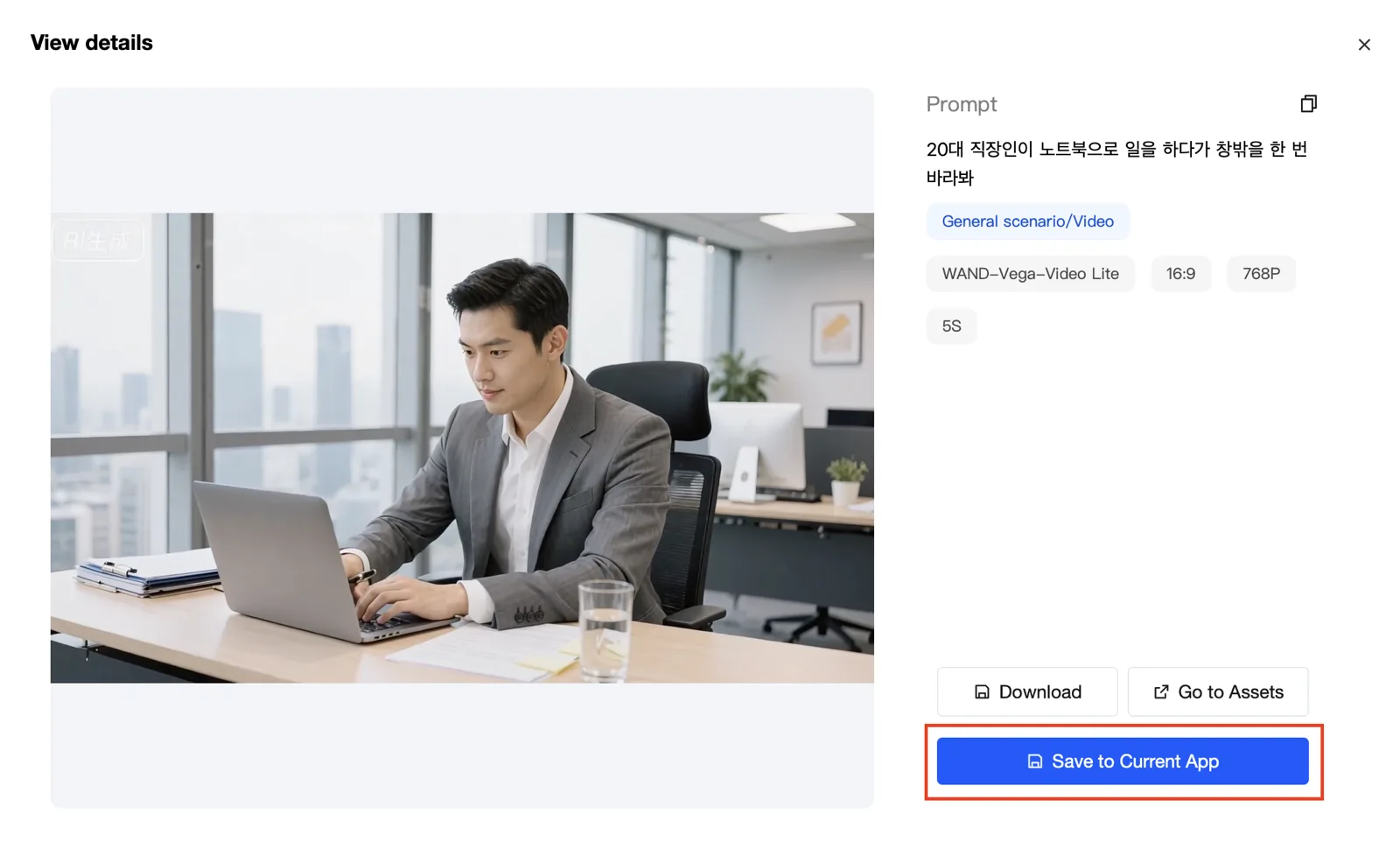
- Download : you can download it to your local computer.
- Go to Assets :goes to that Application's management page.
- Save to Current App : saves it to the Application you selected.