
1. StreamPackage Channels and Endpoints
In StreamPackage, create the channel that will receive HLS and the playback endpoint. Then specify this channel as the output destination of StreamLive and connect the CSS playback domain.
Prerequisites
- Check the usage permissions for StreamPackage and CSS.
- Select the region to use. This example is based on Seoul (ap-seoul).
- Prepare the CSS playback domain and check the DNS and HTTPS certificate settings.
- Use a test name that can be distinguished from existing production channels.
1. Create a Channel
In the StreamPackage console, select the target region and click Create Channel.
| Item | Example Setting | Meaning |
|---|---|---|
| Name | demo_channel | Channel identifier name |
| Input Protocol | HLS | Format to receive in StreamLive |
| Max Segment Duration | Greater than or equal to the source segment length | Maximum segment length that can be received |
| Max Playlist Duration | Greater than or equal to the source playlist length | Maximum playlist length that can be received |
The maximum length is not a setting that creates output segments, but a limit value for receiving input. The default values in the official documentation are 15 seconds and 600 seconds respectively; set them according to the actual input conditions.
After selecting Create, check the name / ID / input protocol on the channel details screen.

In Details on the channel details page, check the name / ID / protocol. Input is the receiving address, Output Endpoint is the playback address, and CDN is the tab for checking the distribution connection. The name and ID in the capture are examples; use the values of the channel you will actually work with.
2. Check the Input Address
In Input on the channel details page, check the two automatically generated input addresses.
If you use input HTTP authentication, also apply the issued username and password on the sending side.

The actual input addresses have been masked. Check the address in each input row and apply it on the sending side.
3. Create a Playback Endpoint
- Select Create Endpoint on the channel details page.
- Enter the endpoint name and set the type to HLS.
- Set Manifest Name to
index. If you used the default valuemain, the final file name also becomesmain.m3u8. - Configure the required IP access policy and AuthKey. Since AuthKey is authentication that uses the HTTP header
X-TENCENT-PACKAGE, check whether the party actually making the request can send the header. - For basic live playback verification, configure additional features such as timeshift / DRM only when there is a requirement.
- Save with Confirm and check the generated Endpoint URL.
Completing endpoint creation and successful video playback are separate steps.
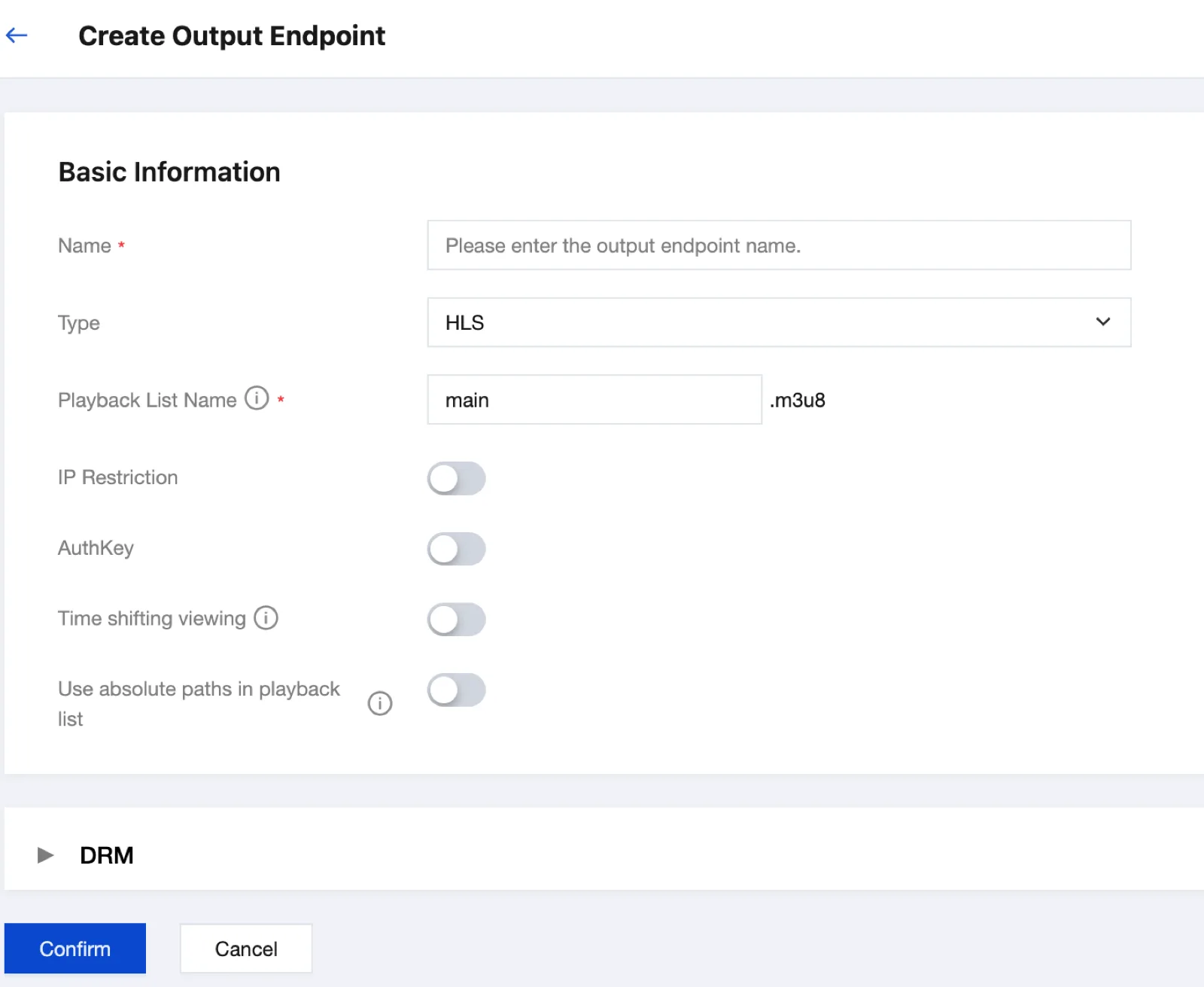
The playback list name field in the current console is Playback List Name. It corresponds to Manifest Name in the official documentation, and if you use the default value main, it is created as main.m3u8.

The capture above shows only regular HLS endpoint rows and the playback address is masked. In actual work, check the URL and Details of the corresponding row.
4. Connect the CSS Playback Domain
On the CDN tab of the channel details page, check the access permissions and distribution configuration. Permissions in both directions are required.
| Direction | Why It Is Needed |
|---|---|
| StreamPackage → CSS | Configure the CSS playback domain in StreamPackage |
| CSS → StreamPackage | CSS retrieves the video of the packaging origin |
In the Authorization procedure, check and approve the permissions of the service role, then verify that the StreamPackage usage permission on the CSS side is in the Activated state. If you do not have the permission, request it from the account administrator.
After configuring permissions, specify the playback domain in Edit Configuration and save with Confirm. A new domain must have the CNAME announced by the DNS provider registered. To play over HTTPS, a valid certificate on the playback domain is also required.

Enabled is the activation state in the console. DNS resolution, HTTPS certificate validity, actual origin access, and successful video playback require separate verification.
5. Information to Pass to the Next Step
| Information | Where It Is Used |
|---|---|
| StreamPackage channel ID | HLS_STREAM_PACKAGE output destination of StreamLive |
| Input address and required authentication information | Check the streaming configuration |
| Endpoint URL | Direct origin playback check |
| CSS playback domain | Playback address for viewers |
The CDN playback address replaces the domain of the connected Endpoint URL with the CSS playback domain and keeps the path.
Next is 2. StreamLive Input and Channel. After everything is connected, inspect the origin and CDN respectively in 4. Send and Verify Playback.
Ending the Test
After confirming that it is not in use by other services, stop the test streaming. If deletion is needed, check the CDN connection and endpoint dependencies, remove the endpoint first, and then delete the channel.
Official Documentation
When Configuring with API
The following commands are an alternative to the console procedure. Masked IDs and addresses must be changed to actual values.
Create a Channel
Specify the protocol as HLS.
tccli mdp CreateStreamPackageChannel \
  --region ap-seoul \
  --Name justinkim_quickstart \
--Protocol HLS{
"Info": {
"Id": "6AA6************32BF",
"Name": "justinkim_quickstart",
"Protocol": "HLS"
}
}The Id in the response continues to be used from the next step onward.
For the channel name, use English letters / numbers / underscores as in streamlive_quickstart.
Create an Endpoint
An endpoint is the unit that determines "in what form to export the packaging result". Here, you create a single HLS endpoint.
tccli mdp CreateStreamPackageChannelEndpoint \
  --region ap-seoul \
  --Id 6AA6************32BF \
  --Name justinkim_quickstart_hls \
  --Protocol HLS \
  --Manifest index \
--AuthInfo '{"WhiteIpList":,"BlackIpList":,"AuthKey":""}'Manifest: If you set it toindex,index.m3u8becomes the master playlistAuthInfo: Leave it empty for now. In a production environment, be sure to apply IP restrictions or an authentication key
Check Addresses
tccli mdp DescribeStreamPackageChannel \
  --region ap-seoul \
--Id 6AA6************32BF{
"Points": {
"Inputs": [
{
"Url": "https://13******46.ap-seoul.streampackage.srclivepush.myqcloud.com/v1/01a0****96005/01a0****96006"
},
{
"Url": "https://13******46.ap-seoul.streampackage.srclivepush.myqcloud.com/v1/01a0****96005/01a0****96007"
}
],
"Endpoints": [
{
"Name": "justinkim_quickstart_hls",
"Url": "https://13******46.ap-seoul.streampackage.srclivepull.myqcloud.com/v1/01a0****96005/01a0****86d1/index.m3u8",
"Protocol": "HLS",
"Manifest": "index"
}
]
}
}Connect the CSS Playback Domain
Bind the CSS playback domain to the StreamPackage channel. In this example, cdn., a domain already registered in the Seoul region, is used.
tccli mdp BindNewLVBDomainWithChannel \
  --region ap-seoul \
  --ChannelId 6AA6************32BF \
--LVBDomain cdn.{
"LVBDomain": "cdn."
}Once binding is complete, the CSS playback address is the endpoint URL with only its domain replaced by the playback domain. The path remains the same.
https://cdn.After connecting CDN, check the origin access permissions, authentication, request path / query, DNS / TLS, and actual playback. Before making changes, check the relevant request segment.
Configuration Results
| Item | Value |
|---|---|
| Channel | justinkim_quickstart (6AA6************32BF) |
| Endpoint | justinkim_quickstart_hls |
| Input URL (where StreamLive pushes) | https://13****<strong>46.ap-seoul.streampackage.srclivepush.myqcloud.com/v1/01a0</strong><strong>96005/01a0</strong>**96006 |
| Endpoint URL (origin) | https://13****<strong>46.ap-seoul.streampackage.srclivepull.myqcloud.com/v1/01a0</strong><strong>96005/01a0</strong>**86d1/index.m3u8 |
| CSS playback URL | https://cdn. |