
Preparing StreamLink Events and Flows
In StreamLink, a single transmission path is managed as a Flow, and related Flows are grouped into an Event.
Configuration Units
| Unit | Role | Example |
|---|---|---|
| Event | Manages related transmission paths | demo_event |
| Flow | A transmission path made up of inputs and outputs | Venue → studio |
| Input | The point where a signal is received into StreamLink | Receiving SRT output from the on-site encoder |
| Output | The point where a signal is sent out from StreamLink | Studio receiver or delivery to StreamLive |
Preparation Before Starting
- Confirm that you have permission to access the StreamLink console.
- Check the location, supported protocols, and public IP of the source device and the receiving system.
- Decide the source bitrate and the number of inputs / outputs needed. Because costs are incurred for transmission bandwidth and node execution, configure only the paths required for a basic test.
1. Creating an Event
In the Event list in the console, select Create and enter a name that identifies the event or service purpose. This example uses demo_event.
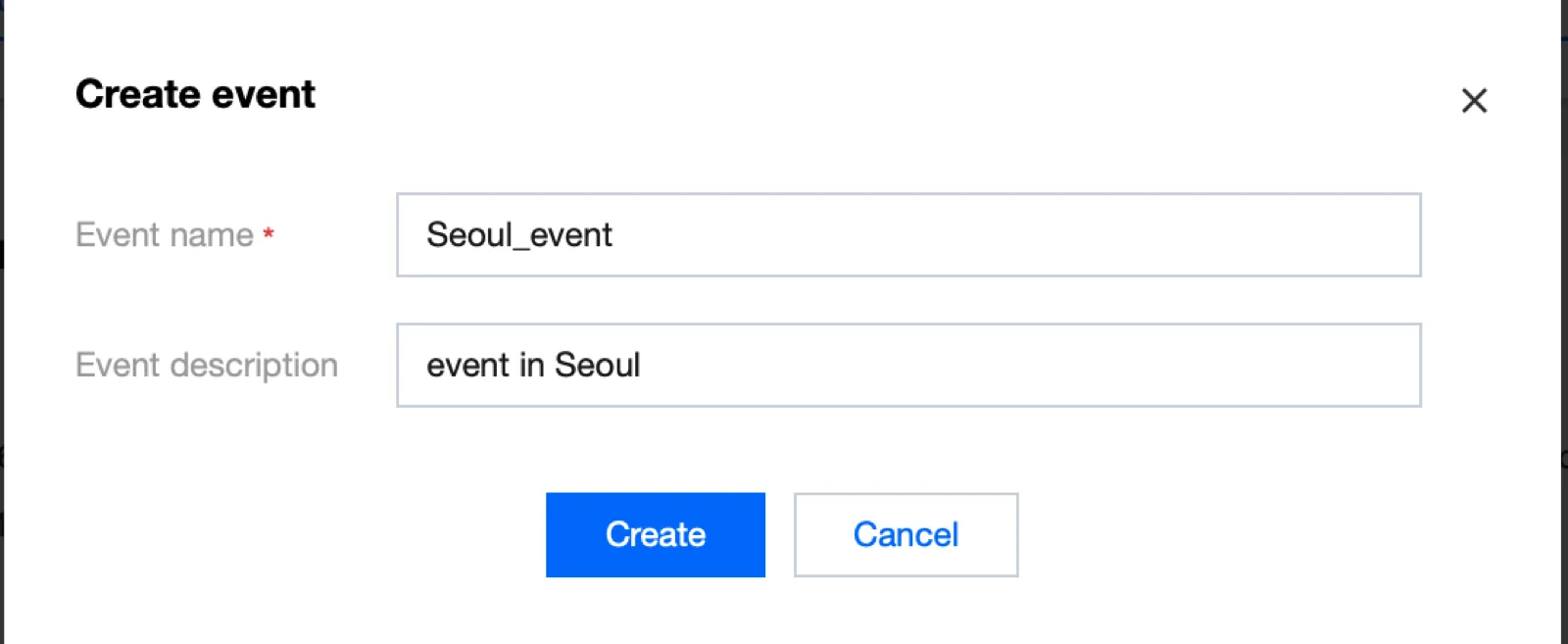
The capture is an example that explains the menu location.
2. Entering the Flow Management Screen
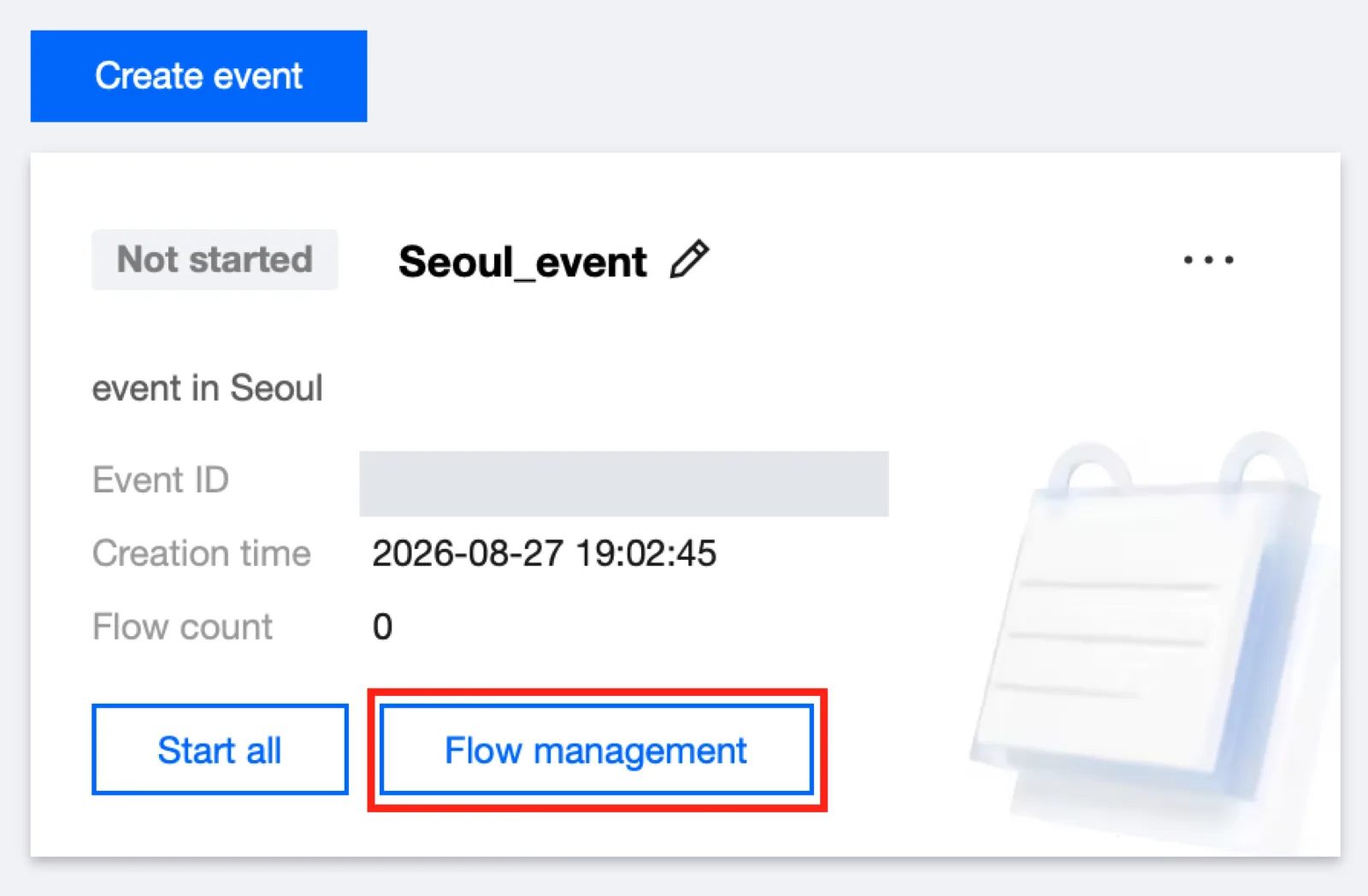
In the Event you created, select Flow management. Here you manage Flows and the inputs / outputs of each Flow.
3. Selecting a Transmission Method
| Requirement | Next configuration |
|---|---|
| Connecting an on-site encoder and receiver that support SRT | SRT Flow |
| Connecting RTMP source equipment or a platform | RTMP Flow |
| Configuring the full delivery path including StreamLive | Quick Start: StreamLink connection |
Before creating a Flow, decide who initiates the connection. In SRT, Caller/Listener are roles for establishing the connection, while input/output are the directions in which video data travels.
Verification and Termination
Once the Event and Flow appear in the list, creation of the management resources is complete. Actual delivery is verified after configuring the inputs / outputs and starting the Flow.
On the Event screen, you can start or stop the affiliated Flows all at once. If production paths and test paths are mixed, select individual Flows to work on. When the test ends, check the running status of the Flows you created and keep only the paths you need.