
Saving Live Segments with a Harvest Job
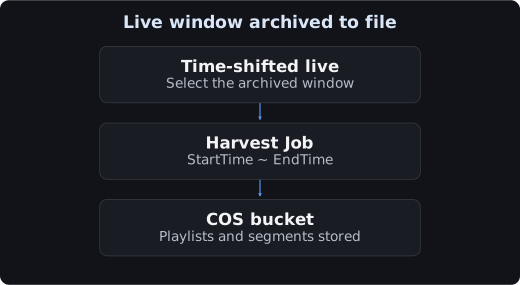
A Harvest Job extracts a past live segment retained on an endpoint and stores it in COS. It runs once after creation and differs from a job that re-publishes the source.
Prerequisites
- Time-shifted Viewing must be enabled on the target endpoint.
- The video to extract must still be within the actual retention window.
- The end time must be in the past, and the start-to-end interval can be at most
24 hours. - Prepare a COS bucket in the same region as StreamPackage, with read / write permissions.
- Use a unique Manifest key for each job.
Reusing the same Manifest key can cause a new playlist to overwrite the existing one. Keep the storage paths of different jobs separate as well.
Console Creation Procedure
- In Harvest Jobs of the StreamPackage console, select Create Harvest Job.
- Specify the job ID and select the Origin endpoint.
- Under Date and time format, select either Epoch seconds or ISO-8601.
- Specify the start and end times.
- Verify the COS permissions and select a bucket in the same region.
- Specify a Manifest key that includes the path inside the bucket and the parent playlist file name.
- If you need a completion notification, configure the Callback HTTP URL.
- Review the details and create the job.
Per the official guide, job IDs use letters, digits, underscores, and hyphens, up to 128 characters.
Time Specification Example
| Item | ISO-8601 example |
|---|---|
| Start | 2026-09-18T00:00:00Z |
| End | 2026-09-18T00:10:00Z |
The dates above only illustrate the format. Replace them with a past segment that is actually retained.
Checking Status and Results
Check the job status along with the channel, endpoint, and time range in the list or in Info. Once the job completes, verify that the playlist in COS and the segments it references exist, then play them back. Do not rely on the job status alone — also compare the start / end range, duration, and video / audio.
A API query example follows. Check the parameter schema of the SDK you are using and replace the job ID.
tccli mdp DescribeStreamPackageHarvestJobs --region ap-seoul
tccli mdp DescribeStreamPackageHarvestJob --region ap-seoul --ID YOUR_JOB_ID
Completion Callback
The callback described in the official guide includes the following fields. The values below illustrate the format.
{
  "harvest_job_id": "demo_job",
  "state": "success",
  "time": 1789689600
}
The callback state is either success or failed, and time is a Unix timestamp. The receiver should handle notifications idempotently based on the notification ID and apply authentication / retry policies.
Verifying Results and Cleaning Up
| Check item | What to verify |
|---|---|
| Source retention | When time shifting was enabled and which segments remain |
| Time range | Start < end, end time in the past, at most 24 hours |
| Storage location | A COS bucket in the same region, and its permissions |
| File path | A unique Manifest key and the risk of overwriting |
| Playback verification | Whether the segments exist, and the access policy |
Manage job records based on the current status and the available operations shown in the console / API.
Clearing job records and deleting the COS result files are verified separately. When deleting test artifacts, specify the exact bucket / object path and first confirm whether they are shared.