
StreamLive Channel Configuration
Connect the input / transcoding settings / output destination to the StreamLive channel and then start it. The channel encodes the source at the specified quality and delivers it to the destination.
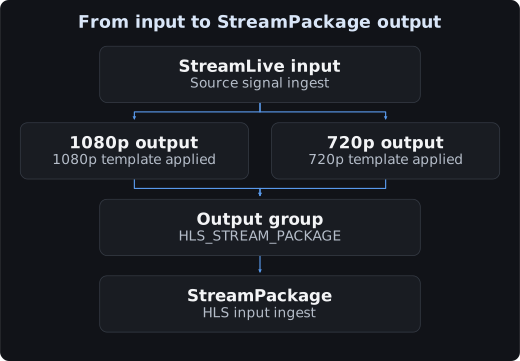
In this document, one 1080p30 input is used to produce 1080p30 and 720p30 outputs, and both outputs are delivered via StreamPackage.
Preparation Before Starting
- Complete the input configuration and make sure the source device can transmit to that input.
- First create the StreamPackage channel and check the channel ID. What you need is the channel ID, not the playback URL or the input URL.
- Outputs use a combined template that includes both H.264 video and AAC audio. For the concept of templates, refer to transcoding templates.
- Running a channel incurs charges. Distinguish between the channels to stop after verification and those to keep running.
1. Connecting the Channel and Input
- In the StreamLive console, select the working region.
- On the channel creation screen, enter
demo_channelas the name. - In the add input step, select the input you prepared.
- For multi-audio input, specify the track to use. The default configuration uses the first audio track.
An input being connected to a channel is different from a signal actually being received.
2. Configuring Output Groups and Destinations
An output group is a bundle of outputs that use the same delivery method and destination. An output is the individual quality that is actually sent out.
| Setting | Value in this example | Meaning |
|---|---|---|
| Output group name | demoPackage | A name that distinguishes the output bundle |
| Output group type | HLS_STREAM_PACKAGE | Delivers HLS to the StreamPackage of the current account |
| Destination | Channel ID of the StreamPackage you created | The channel that will receive the stream |
Output 1 | output1080p | 1920×1080, 30fps |
Output 2 | output720p | 1280×720, 30fps |
The general HLS output type delivers to the destination URL using HTTP PUT. The HLS_STREAM_PACKAGE type specifies the StreamPackage channel ID.
3. Transcoding Settings per Quality
In the Transcoding Setting of each output, set a combined template that includes video and audio.
| Setting | 1080p output | 720p output |
|---|---|---|
| Template name | demo1080p | demo720p |
| Video codec | H.264 | H.264 |
| Resolution | 1920×1080 | 1280×720 |
| Frame rate | 30fps | 30fps |
| Video bitrate | 4Mbps | 2Mbps |
| Bitrate control | ABR | ABR |
| Audio | AAC, 128kbps, 48kHz | AAC, 128kbps, 48kHz |
The bitrates are example values. Sources with a lot of motion and static sources require different bitrates, so verify with actual content. Keep the frame rate settings identical across all output groups and outputs within a channel.
This example connects one combined template to one output. A separated configuration that uses separate video / audio templates can be used for cases such as multiple audio tracks.
4. HLS Settings
| Setting | Example value | What to check |
|---|---|---|
| Segment Duration | 4 seconds | Enter 4000, which is in milliseconds, into API SegmentDuration |
| Segment Number | 5 | Number of segments to keep in the output playlist |
| Scheme | MERGE | Segments that combine video and audio |
| Segment Type | ts | MPEG-TS segments |
| PDT Insertion | Enabled | Inserts program date and time tags |
| PDT Duration | 600 seconds | Interval for inserting PDT tags. Not the retention period or time-shift range |
A segment 5 of about 4 seconds corresponds to a list covering about 20 seconds. Encoding / delivery / CDN cache / player buffering also have an impact.
Configure low-latency HLS / fMP4 / DRM additionally according to the combination of output type / codec / packager / player.
5. Save / Start / Playback Check
- After reviewing the settings, save with Confirm and Done.
- Select Start for the target channel.
- Send the input signal from the source side and check the channel status and input monitoring.
- Check the playback URL in the Output Endpoint of StreamPackage.
- Check that both qualities are present in the master playlist and that each media playlist is being updated.
- Play each of the two qualities in a player and check the video / audio / quality switching.
After the channel starts, check in this order: input reception → encoding output → packager reception → CDN response → player playback.
Creating the Same Configuration with API
Save the following JSON as channel.json and replace REPLACE_INPUT_ID and REPLACE_PACKAGE_CHANNEL_ID with actual values.
{
  "Name": "demo_channel",
  "AttachedInputs": [
    {
      "Id": "REPLACE_INPUT_ID"
    }
  ],
  "AVTemplates": [
    {
      "Name": "demo1080p",
      "NeedVideo": 1,
      "NeedAudio": 1,
      "Vcodec": "H264",
      "Width": 1920,
      "Height": 1080,
      "Fps": 30,
      "VideoBitrate": 4000000,
      "RateControlMode": "ABR",
      "Acodec": "AAC",
      "AudioBitrate": 128000,
      "AudioSampleRate": 48000,
      "FrameRateType": "SPECIFIED_HZ"
    },
    {
      "Name": "demo720p",
      "NeedVideo": 1,
      "NeedAudio": 1,
      "Vcodec": "H264",
      "Width": 1280,
      "Height": 720,
      "Fps": 30,
      "VideoBitrate": 2000000,
      "RateControlMode": "ABR",
      "Acodec": "AAC",
      "AudioBitrate": 128000,
      "AudioSampleRate": 48000,
      "FrameRateType": "SPECIFIED_HZ"
    }
  ],
  "OutputGroups": [
    {
      "Name": "demoPackage",
      "Type": "HLS_STREAM_PACKAGE",
      "Outputs": [
        {
          "Name": "output1080p",
          "AVTemplateNames": [
            "demo1080p"
          ]
        },
        {
          "Name": "output720p",
          "AVTemplateNames": [
            "demo720p"
          ]
        }
      ],
      "HlsRemuxSettings": {
        "SegmentDuration": 4000,
        "SegmentNumber": 5,
        "PdtInsertion": "OPEN",
        "PdtDuration": 600,
        "Scheme": "MERGE",
        "SegmentType": "ts"
      },
      "StreamPackageSettings": {
        "Id": "REPLACE_PACKAGE_CHANNEL_ID"
      }
    }
  ]
}
Run it in an environment where TCCLI authentication and region are configured. This command creates a new channel.
tccli mdl CreateStreamLiveChannel --region ap-seoul --cli-input-json file://channel.jsonCheck the channel ID in the create response, then query / start it.
tccli mdl DescribeStreamLiveChannel --region ap-seoul --Id REPLACE_CHANNEL_ID
tccli mdl StartStreamLiveChannel --region ap-seoul --Id REPLACE_CHANNEL_ID
Changes and Termination
Apply changes that require stopping during a maintenance window or after preparing a backup path, while the channel is in the IDLE state. After testing, check the target ID and stop the channel.
tccli mdl StopStreamLiveChannel --region ap-seoul --Id REPLACE_CHANNEL_IDAlso clean up StreamLink delivery, the StreamPackage storage feature, and CDN usage respectively.