
0. Stream Quick Start
This describes the procedure for receiving / transcoding / packaging / distributing live video by connecting StreamLink, StreamLive, StreamPackage, and CSS CDN. After configuration is complete, you can check the video sent from the encoder at the CDN playback address.
Overall Structure

| Service | Role |
|---|---|
| StreamLink | Receives external video signals and relays them to StreamLive. |
| StreamLive | Transcodes the input video into multiple resolutions and bitrates. |
| StreamPackage | Packages the video into HLS or DASH and provides playback endpoints. |
| CSS CDN | Distributes the video to viewers through the playback domain. |
StreamLink is used when relaying and redundancy are required in the transmission segment. A configuration in which the encoder inputs directly to StreamLive is also possible.
Prerequisites
- Prepare a Tencent Cloud account and the usage permissions for each service.
- The region for this guide is Seoul (ap-seoul). Check whether the services are supported in each region.
- Prepare an encoder that supports RTMP streaming, or OBS / FFmpeg.
- Prepare the playback domain registered in CSS and the required certificate / DNS settings.
- For the input security group, it is recommended to allow only the public IP of the streaming equipment.
Check the transmission / transcoding / CDN usage and clean up the relevant resources after the test ends.
Configuration Order
Data flows from StreamLink toward CDN, but resources are configured starting from the output destination. This is because the StreamLive output can be set only when the StreamPackage input address exists, and the StreamLink output can be connected only when the StreamLive input address exists.
- StreamPackage Configure the Channel and Endpoints: Create the packaging channel and check the input address and the HLS playback endpoint.
- StreamLive Configure the Input and Channel: Set the input security policy and transcoding output, then connect to StreamPackage.
- Connect the StreamLink Flow: Configure the external input and specify the StreamLive input address as the output destination.
- Verify Streaming and Playback: Start encoder streaming and check playback in the origin / CDN order.
Console Entry
| Configuration Target | Console | Items to Check |
|---|---|---|
| StreamLink | Flow Management | Input protocol, output destination, running status |
| StreamLive | Channel Management | Connected input, output by resolution, running status |
| StreamPackage | Channel Management | Channel input address, endpoint, CDN connection |
Checking the Connection Status in the Console
The following is the StreamLive channel details screen. After configuring the connections between services, check the channel status and the connected input. The configuration procedures for StreamLink and StreamPackage are carried out in each document in the configuration order above.
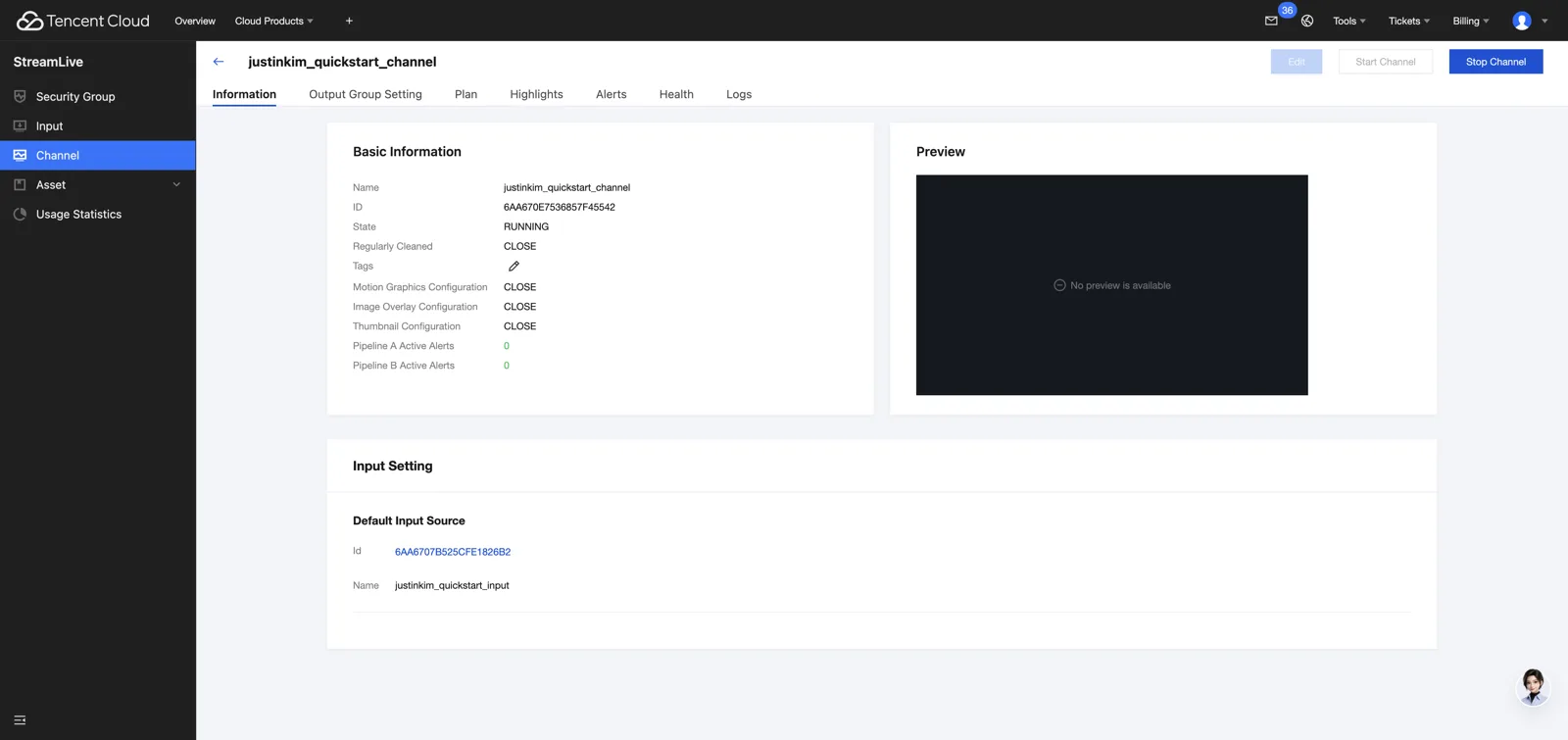
Check State and Input Setting in Information, and check the StreamPackage destination in Output Group Setting. RUNNING means the channel has started; video reception and final playback must be checked separately. If Preview is empty, distinguish between the preview configuration and the actual playback status.

In Details on the channel details page, check the name / ID / protocol. Input is the receiving address, Output Endpoint is the playback address, and CDN is the tab for checking the distribution connection. The name and ID in the capture are examples; use the values of the channel you will actually work with.
Playback Verification Criteria
- Check the encoder streaming and the running status of StreamLink / StreamLive.
- Check that the StreamPackage master playlist includes the playback lists for each configured resolution.
- Repeatedly request the media playlist to check whether new segments are added.
- Check that video and audio play normally at the CDN playback address as well.
Play the origin and CDN in turn, and check the domain connection / request path / authentication and the actual video / audio.