
Transcoding Templates
A transcoding template defines the codec, resolution, bitrate, and frame rate of the output video and audio. Creating a template alone does not generate video — you must also attach it to a channel Output and receive the source stream.
Configuring Output at Two Resolutions
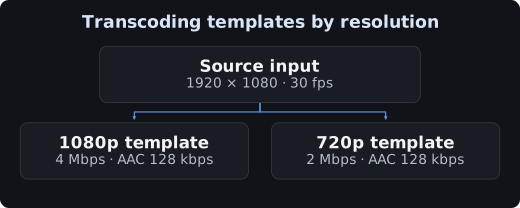
This example outputs both 1080p and 720p from a 1080p 30fps source.
| Item | 1080p output | 720p output |
|---|---|---|
| Template name | demo1080p | demo720p |
| Video codec | H.264 | H.264 |
| Resolution | 1920 × 1080 | 1280 × 720 |
| Frame rate | 30 fps | 30 fps |
| Video bitrate | 4 Mbps | 2 Mbps |
| Audio | AAC 128 kbps / 48 kHz | AAC 128 kbps / 48 kHz |
Play back sources with heavy motion, small text, and dark scenes before adjusting the bitrate.
Console Configuration
- Go to the Output Group on the channel creation or edit page. To edit a running channel, stop it first.
- Add an Output and select Transcoding Setting → Setting.
- For the basic example with a single audio track, configure a combined video / audio template.
- Enter the template name, whether video / audio is enabled, and the codec and quality parameters.
- Add an Output for the other resolution and attach its own template.
- Verify the output frame rate and destination, then save.
If you need multiple audio tracks, consider a separated video / audio transcoding configuration.
Names and Units
Combined video / audio template names must use letters and digits and be 1~20 characters long. Input / Channel / Output names follow the rules of their respective fields.
| Setting | Description |
|---|---|
| VideoBitrate | Video bitrate in the API example, in bps |
| AudioBitrate | Audio bitrate in the API example, in bps |
| AudioSampleRate | Audio sample rate, in Hz |
| Fps | The specified output frame rate |
| Width / Height | Output dimensions in pixels |
| GOP Size | Check the unit shown in the console; the official guide states ms |
Keep the frame rate settings consistent across the output groups and outputs of a single channel. Decide first whether to follow the source or use a fixed value.
API Configuration Example
The following JSON describes the AVTemplates section of a Channel request. It is not a complete channel creation request — you must also configure the input and the Output Group.
{
  "AVTemplates": [
    {
      "Name": "demo1080p",
      "NeedVideo": 1,
      "NeedAudio": 1,
      "Vcodec": "H264",
      "Width": 1920,
      "Height": 1080,
      "Fps": 30,
      "VideoBitrate": 4000000,
      "RateControlMode": "ABR",
      "Acodec": "AAC",
      "AudioBitrate": 128000,
      "AudioSampleRate": 48000,
      "FrameRateType": "SPECIFIED_HZ"
    },
    {
      "Name": "demo720p",
      "NeedVideo": 1,
      "NeedAudio": 1,
      "Vcodec": "H264",
      "Width": 1280,
      "Height": 720,
      "Fps": 30,
      "VideoBitrate": 2000000,
      "RateControlMode": "ABR",
      "Acodec": "AAC",
      "AudioBitrate": 128000,
      "AudioSampleRate": 48000,
      "FrameRateType": "SPECIFIED_HZ"
    }
  ]
}
Bitrate Control and Additional Features
| Feature | Meaning |
|---|---|
| CBR | Encodes targeting a constant bitrate |
| ABR | Encodes targeting an average bitrate while allowing fluctuation |
| VBR | Adjusts according to the configured quality and maximum bitrate constraints |
| Audio Normalization | Adjusts audio loudness to a target LUFS |
| Top Speed Codec | A separate transcoding feature for better quality and bitrate efficiency |
When applying Top Speed Codec, evaluate quality, bitrate, and cost together. Add watermarking, face blurring, and multiple audio tracks to the configuration as needed.
Verifying the Result
After starting the channel, play each media rendition separately. Check resolution and codec information with ffprobe, and check for stalls, quality issues, and missing audio by actually playing the stream.
Keep a record of the channel configuration and template references from before the change. After testing, stop the dedicated channel and clean up the resources.